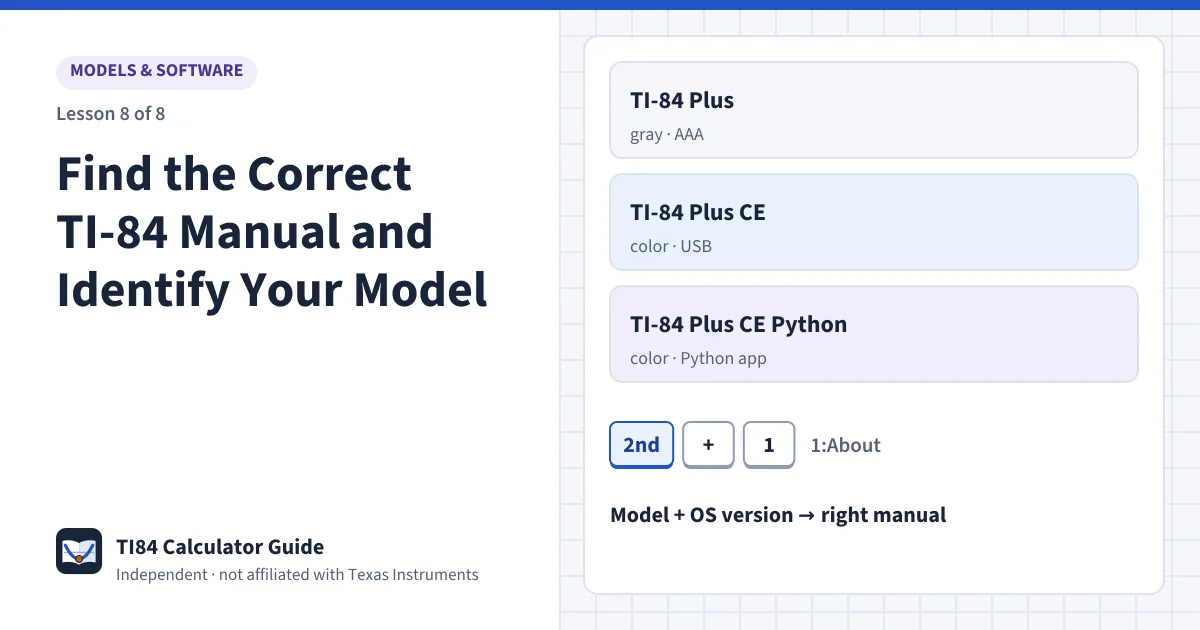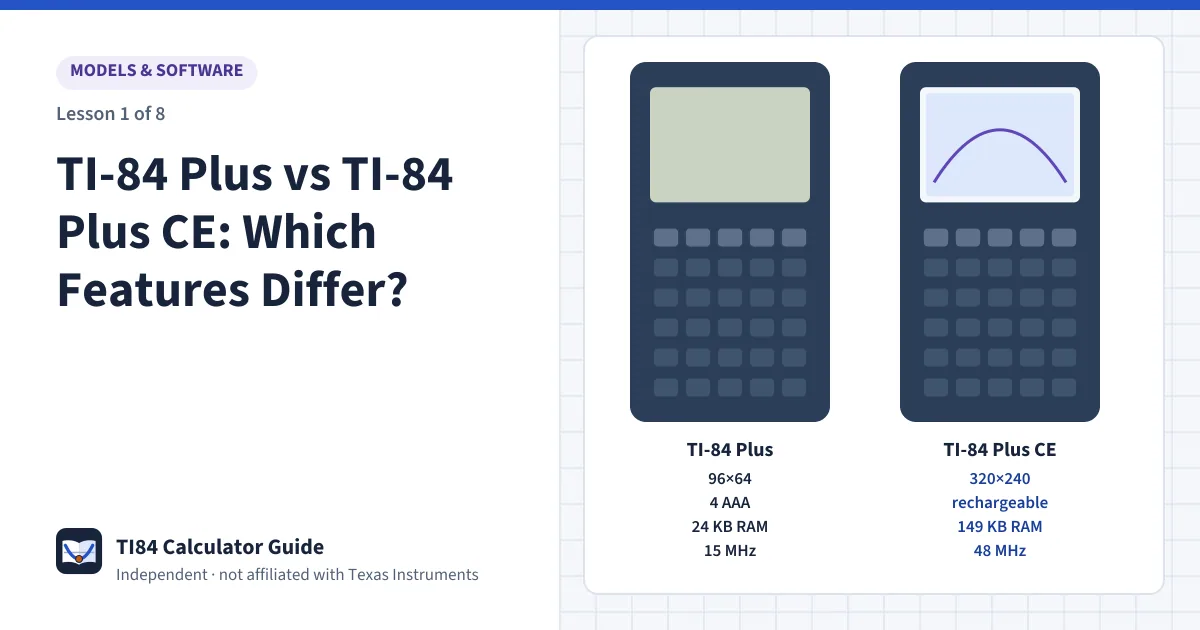
The TI-84 Plus and the TI-84 Plus CE share a keyboard layout, most menus and nearly all of the mathematics taught in these guides. The differences are mostly hardware: the screen, the power source, memory and speed. This comparison uses Texas Instruments’ own specification pages, checked on November 23, 2026; we do not quote prices, which change.
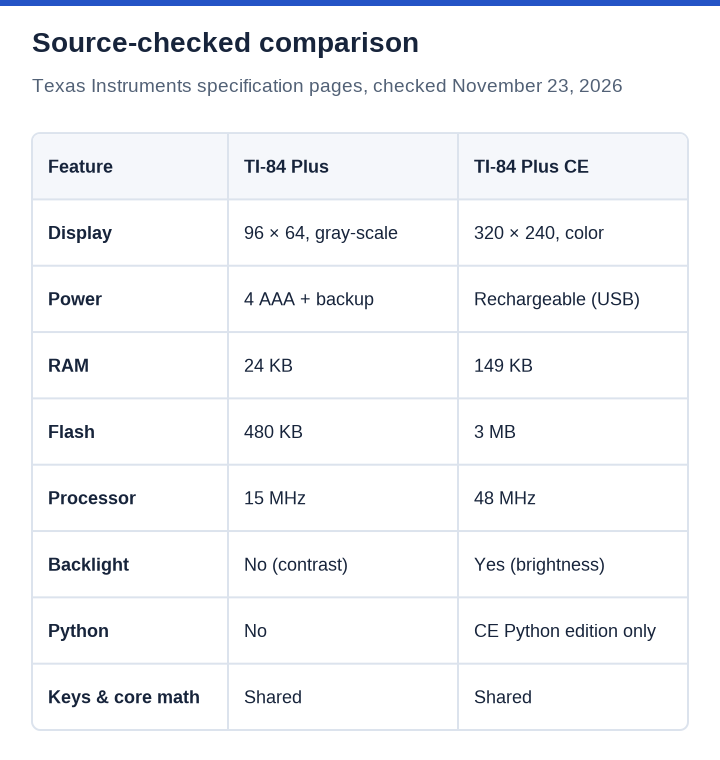
Hardware differences
| Feature | TI-84 Plus | TI-84 Plus CE |
|---|---|---|
| Display | 96 × 64 pixels, gray-scale (8 lines × 16 characters) | 320 × 240 pixels, 2.8-inch, 16-bit color |
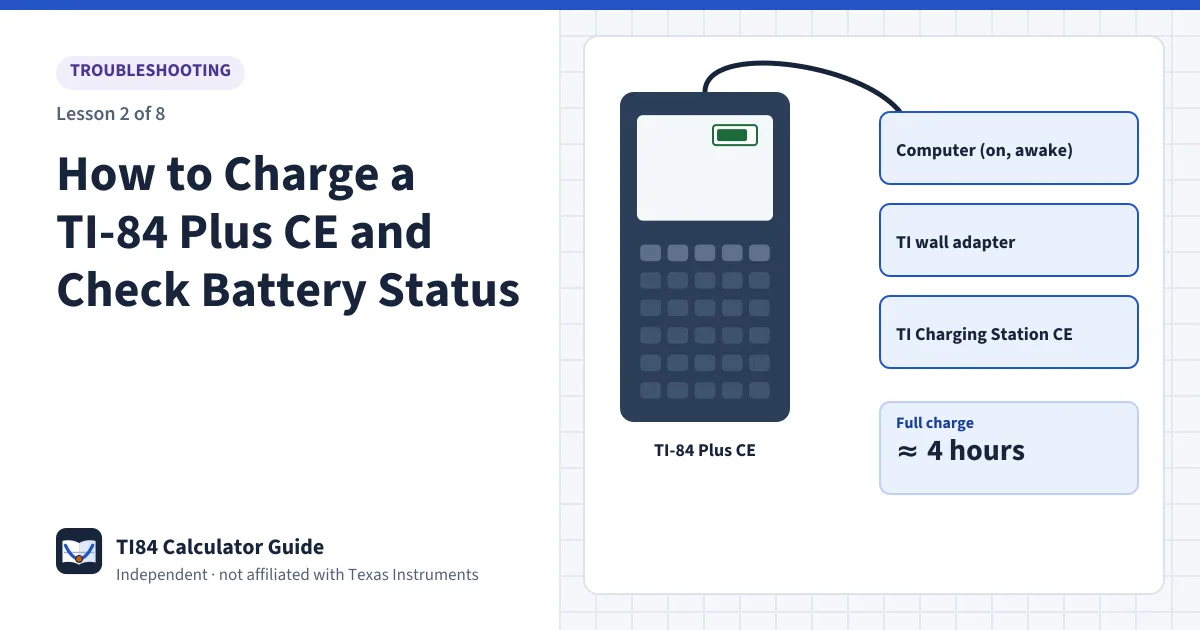
| Power | 4 AAA batteries plus a backup cell | TI Rechargeable Battery, charged by USB |
| RAM | 24 KB | 149 KB |
| Flash (archive/apps) | 480 KB | 3 MB |
| Processor | 15 MHz | 48 MHz |
| Graph colors | — | 15 colors for functions and plots |
| Backlight | No (contrast adjustment) | Yes (brightness adjustment) |
TI also describes the CE as thinner and lighter than the TI-84 Plus.
What stays the same
For students following a course, these matter more than the specifications:
- Key layout and names — Y=, WINDOW, ZOOM, TRACE, GRAPH, 2nd, ALPHA, MATH, STAT and the rest are in the same places.
- Core math — fractions, logs, trig, matrices, lists, 1-Var Stats, regression, distributions and the STAT TESTS menu.
- Graphing workflow — Y= entry, CALC zero/minimum/intersect and tables.
Every lesson on this site states which model and source it was checked against, and points out differences such as MathPrint templates, Stat Wizards and the CE’s shortcut menus.
Where the experience differs
- Readability. The color screen and MathPrint display make fractions and exponents look like a textbook. The CE also uses color to tell functions apart.
- Charging versus batteries. The CE needs regular charging and loses RAM if the battery goes completely flat; the Plus needs AAA replacements. See charging a TI-84 Plus CE.
- Wizards and menus. CE operating systems add Stat Wizards, shortcut menus and newer menu items, so some menu numbers differ from the Plus.
- Speed. Graphs, programs and large lists run noticeably faster on the CE’s faster processor.
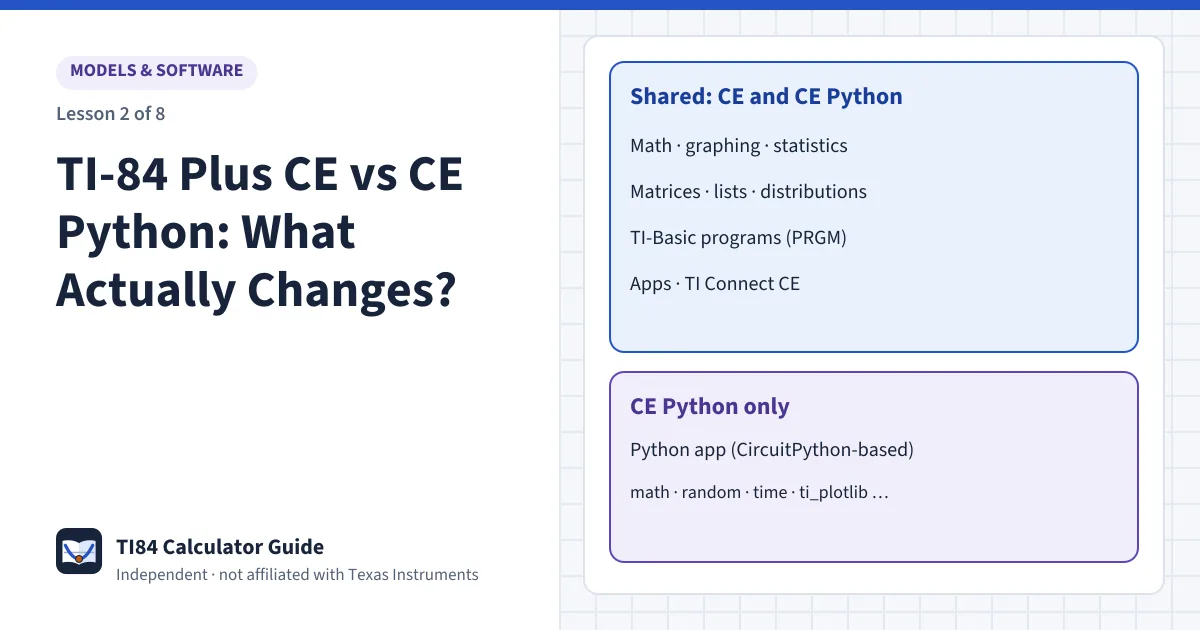
- Python. Only the TI-84 Plus CE Python edition runs Python; see CE vs CE Python.
Newer models
Texas Instruments has released the TI-84 Evo. TI’s support article comparing it with the TI-84 Plus CE lists a faster processor (156 MHz vs 48 MHz), a larger graphing area and a USB-C port. Its menus and some keystrokes differ, so check TI’s own Evo documentation rather than assuming these guides apply unchanged.
Which one should a student use?
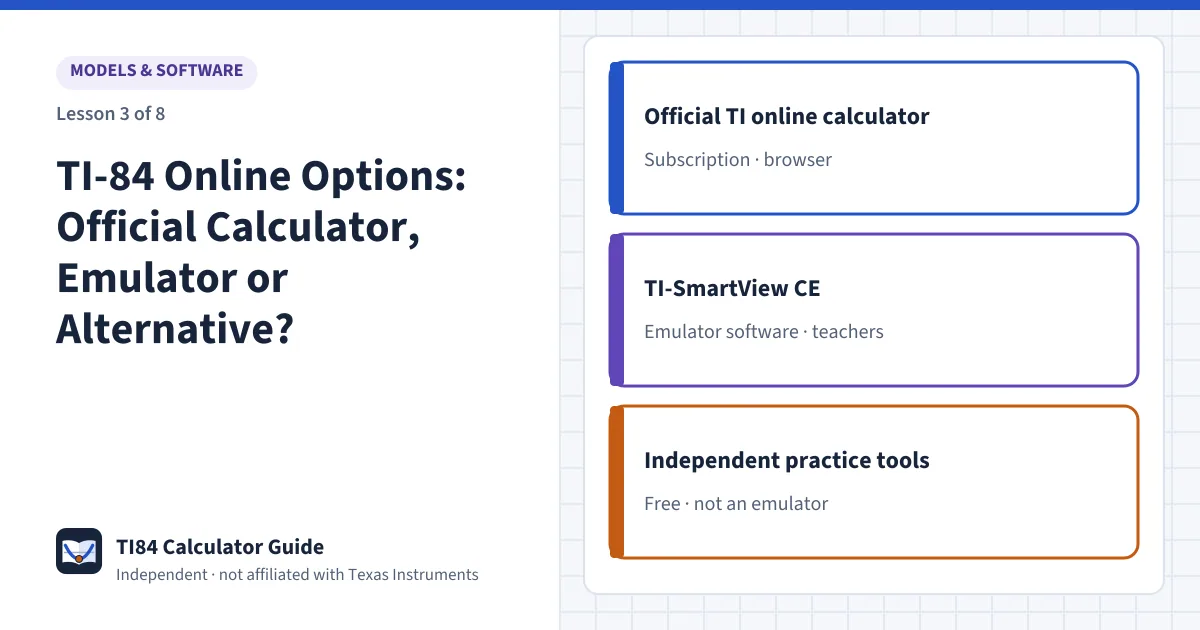
Use the model your teacher or course uses, if one is specified — following along is easier when your screen matches the board. For exams, the model matters less than whether your specific calculator and its stored content meet the rules; see the SAT and ACT guides. Neither model is required for using our independent practice tools, which run in a browser.
Sources
- TI-84 Plus graphing calculator: technical specifications — Texas Instruments (checked November 23, 2026)
- TI-84 Plus CE family product support and specifications — Texas Instruments (checked November 23, 2026)
- TI-84 Evo comparison (processor and graph area of earlier models) — Texas Instruments (checked November 23, 2026)
- Solution 40502: TI-84 Evo features compared with the TI-84 Plus CE — Texas Instruments (checked November 23, 2026)
How this guide was made: written by Paul B. Spicer with AI drafting assistance, following our editorial policy. Key sequences and menu names were checked against the Texas Instruments documents listed above; numeric examples are recomputed by automated tests. Diagrams are original illustrations, not screenshots. TI84 Calculator Guide is independently operated and is not affiliated with, sponsored by or endorsed by Texas Instruments. TI-84 Plus, TI-84 Plus CE and related names are used only to describe the calculators our guides cover. Found a mistake? Send a correction.