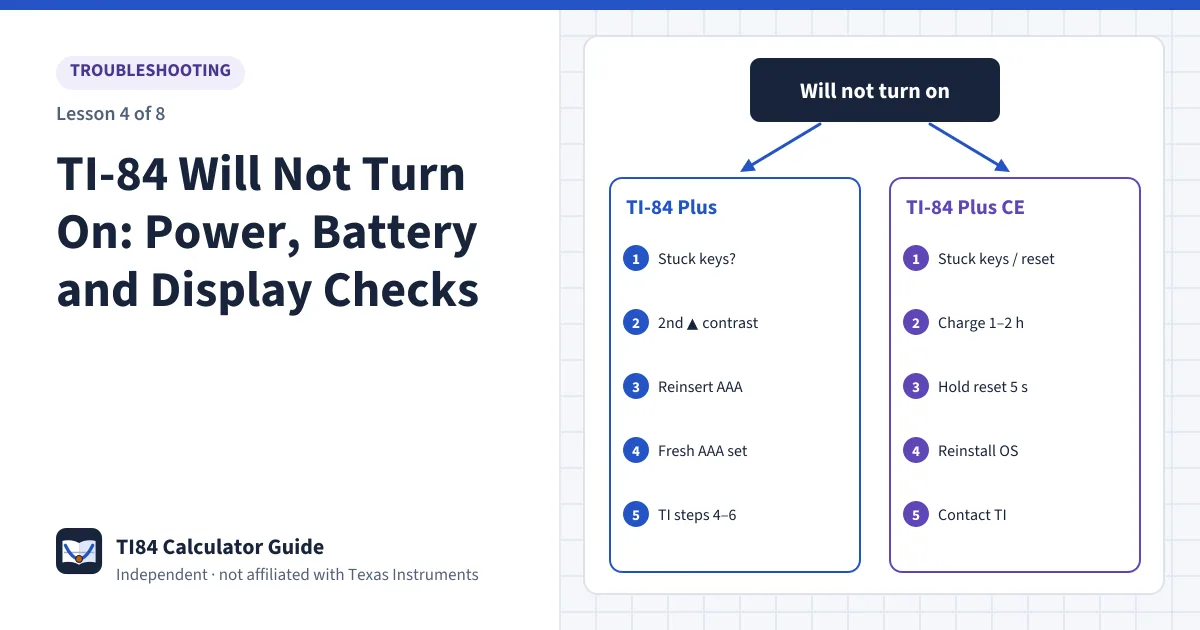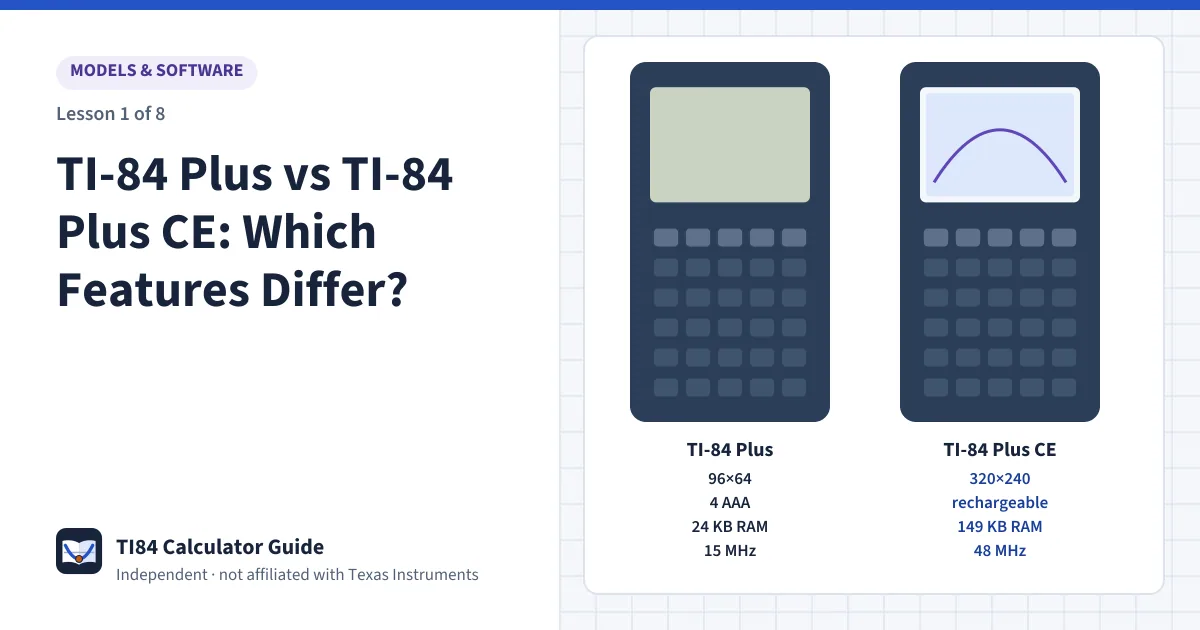
The TI-84 Plus CE (including the CE Python) runs on a built-in TI Rechargeable Battery charged over USB. This guide summarizes Texas Instruments’ own instructions. If you have a gray-screen TI-84 Plus or Silver Edition, it uses four AAA batteries instead — see TI-84 will not turn on.
Supported ways to charge
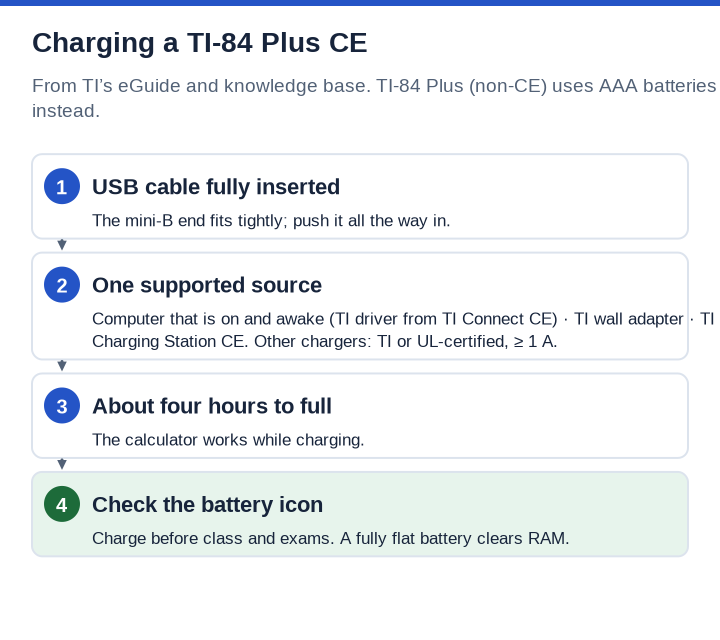
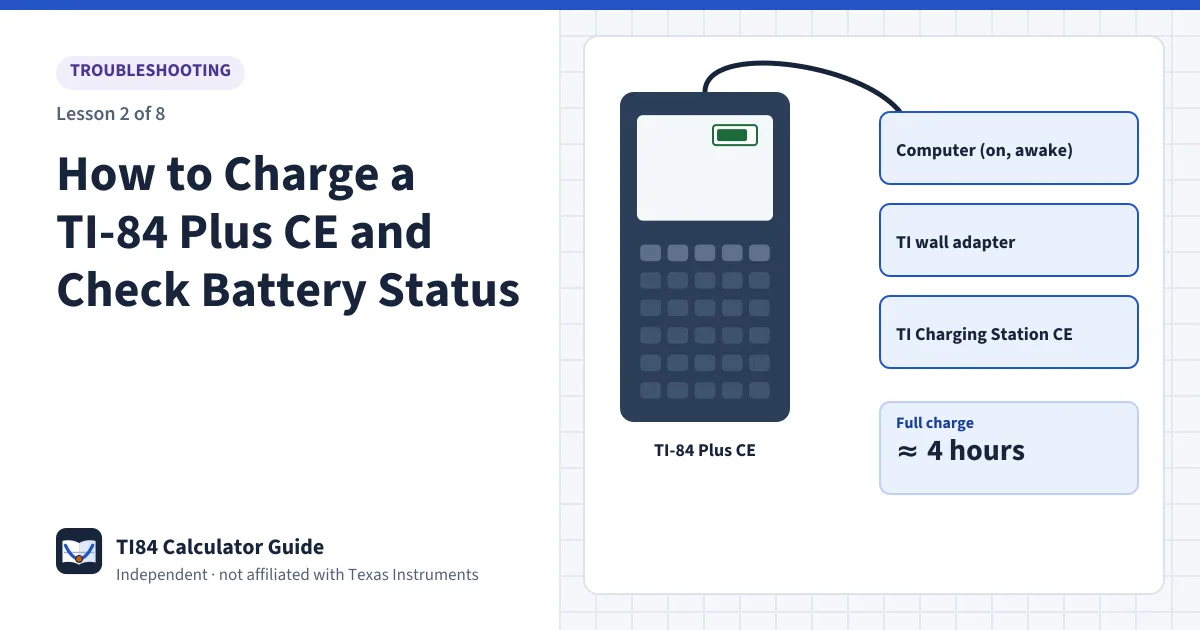
TI’s eGuide lists three sources, all using the calculator’s USB cable:
- A computer. The computer needs TI’s USB driver, which installs with TI Connect CE or TI-SmartView CE. TI’s troubleshooting article adds that a laptop should be plugged in and not asleep or hibernating.
- A wall outlet, through a TI wall adapter (sold separately in some packages).
- A TI Charging Station CE, designed for classroom sets.
How long it takes
TI’s eGuide says a full charge takes about four hours, that times vary, and that the calculator can be used normally while charging. TI recommends charging before class and before exams. You do not remove the battery to charge it.
Step by step
- Push the small (mini-B) end of the USB cable fully into the calculator. TI notes the port is a deliberately tight fit; a partly inserted cable will not charge.
- Connect the other end to a computer that is on, a TI wall adapter or a charging station.
- Leave it to charge. The CE Getting Started guide describes a charging indicator light (amber while charging, green when full) on models that have it.
- Disconnect and check the battery icon before relying on the calculator.
Reading battery status
The CE shows a battery icon in the status bar at the top of the screen. The Getting Started guide describes it in bands (roughly 75–100%, 50–75%, 25–50% and 5–25%). The same guide warns that if the battery runs completely flat, RAM contents are lost, so keep important files archived or backed up.
Charging without the original wall adapter
People often ask how to charge a TI-84 Plus CE “without a charger.” The supported options are still the ones above: the calculator’s USB cable into a computer that is on, or a charging station. TI’s troubleshooting article says other wall chargers should be TI or UL-certified and rated at least 1 amp. We do not recommend improvised cables, power banks of unknown quality or anything that modifies the port.
If it will not charge
Texas Instruments’ Solution 37152 and Solution 37295 give these checks, in summary — read the full articles before starting:
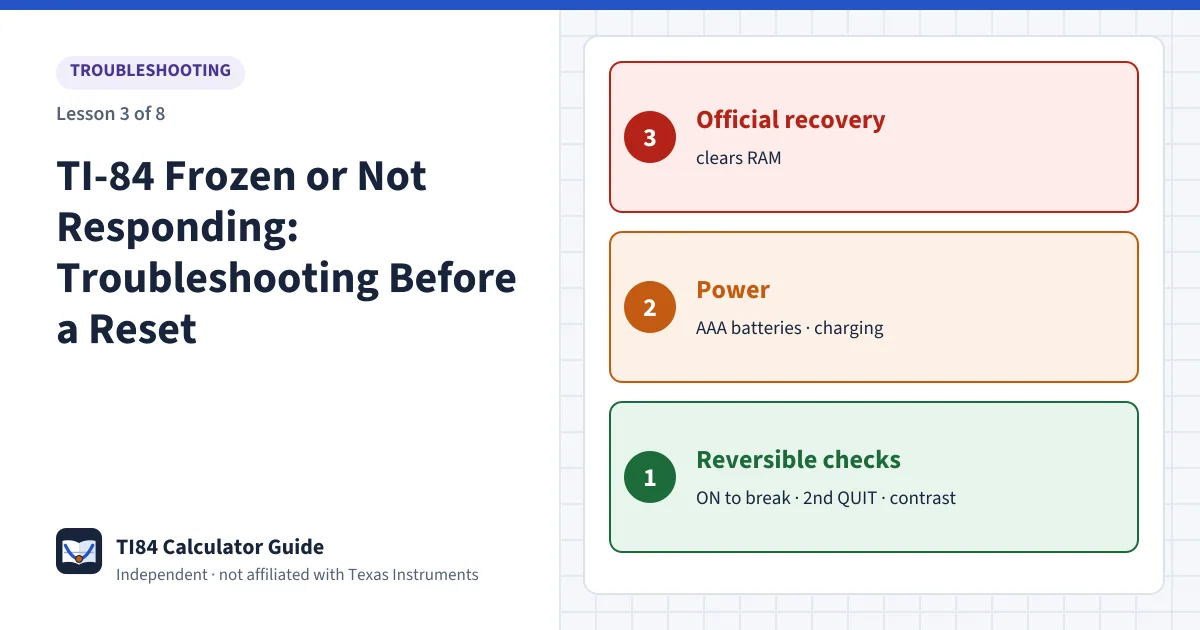
- Check that no keys are stuck down and the reset button on the back is not stuck in.
- Make sure the USB cable is pushed completely into the calculator.
- Try a different supported source: a computer that is on and awake, or a TI/UL-certified adapter of at least 1 A.
- Leave it charging for 1–2 hours. Solution 37295 says that if the indicator does not increase after about 2 hours, follow Solution 37152.
- Press the reset button on the back (this clears RAM).
- If the screen shows “Validating Operating System…” or flashes white, follow TI’s dedicated article (Solution 40446) rather than repeating charging steps.
If none of this works, contact Texas Instruments support about service or the battery.
TI-84 Plus C Silver Edition
TI’s Solution 37295 also covers the TI-84 Plus C Silver Edition, a color model that is likewise rechargeable. Check its own guide for any differences.
Common mistakes
- Laptop asleep. Many laptops stop supplying USB power when asleep.
- Cable not fully seated. Push until it is snug.
- Expecting a TI-84 Plus to charge over USB. It runs on AAA batteries.
Sources
- TI-84 Plus CE eGuide: Recharging the TI rechargeable battery — Texas Instruments (checked November 23, 2026)
- Solution 37152: TI-84 Plus CE will not charge — Texas Instruments (checked November 23, 2026)
- Solution 37295: TI-84 Plus CE or C Silver Edition will not turn on, charge or function properly — Texas Instruments (checked November 23, 2026)
- Getting Started with the TI-84 Plus CE Graphing Calculator (PDF) — Texas Instruments (checked November 23, 2026)
How this guide was made: written by Paul B. Spicer with AI drafting assistance, following our editorial policy. Key sequences and menu names were checked against the Texas Instruments documents listed above; numeric examples are recomputed by automated tests. Diagrams are original illustrations, not screenshots. TI84 Calculator Guide is independently operated and is not affiliated with, sponsored by or endorsed by Texas Instruments. TI-84 Plus, TI-84 Plus CE and related names are used only to describe the calculators our guides cover. Found a mistake? Send a correction.