If the screen is hard to read or results show too many digits, the fix is almost always a display setting. None of the settings on this page delete lists, programs or variables, so you never need a memory reset to change them.
Screen visibility: contrast versus brightness
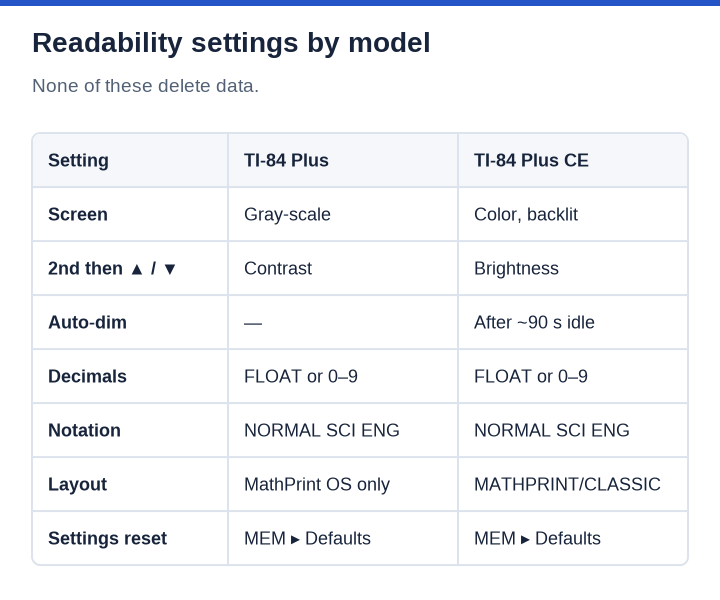
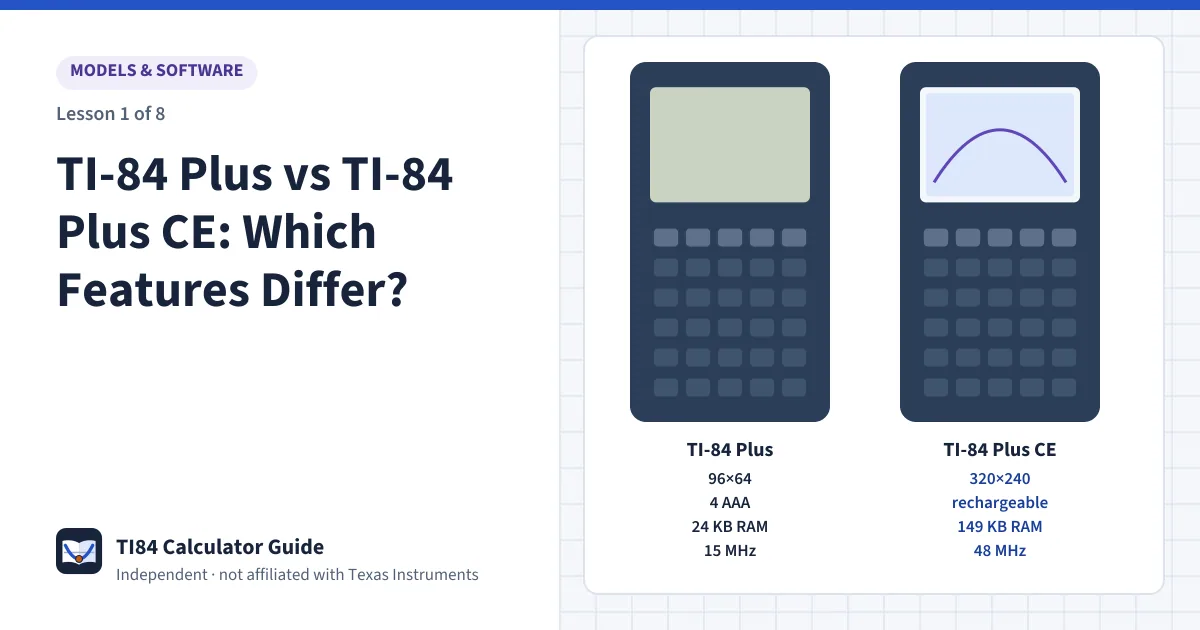
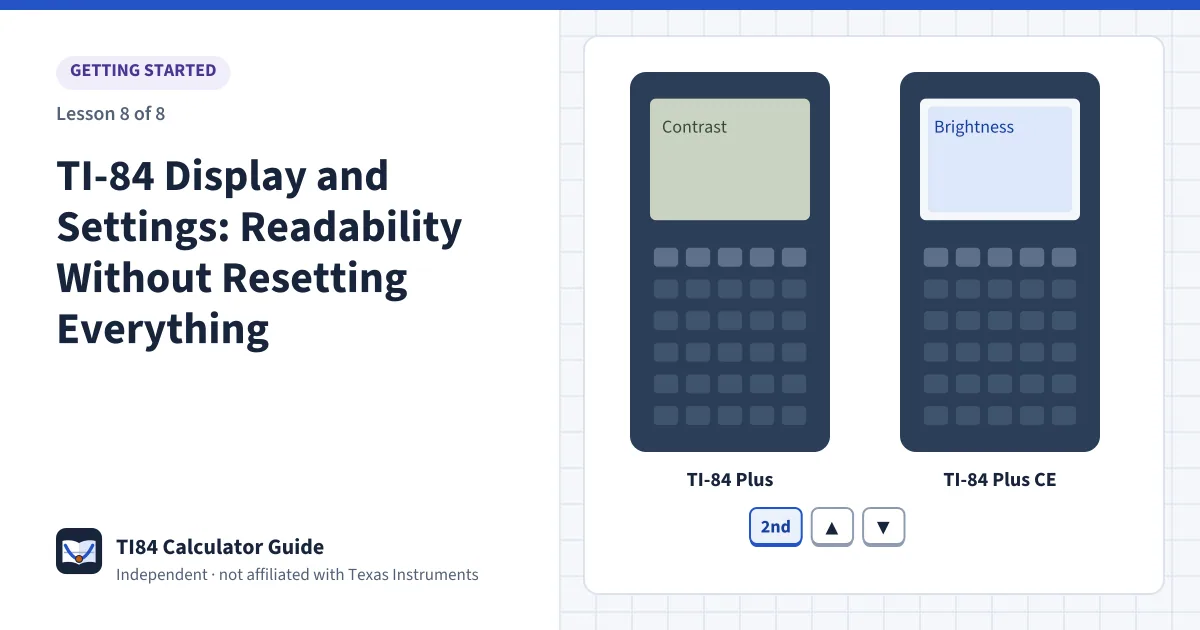
- TI-84 Plus (gray-scale screen): press and release 2nd, then press ▲ to darken or ▼ to lighten. Repeat as needed. The TI-84 Plus has no backlight. If the screen stays very faint at maximum contrast, the AAA batteries may be low.
- TI-84 Plus CE (color screen): the same 2nd ▲ / ▼ keys change backlight brightness. The CE guide notes that the screen dims automatically after about 90 seconds of inactivity to save the battery; press any key to restore it.
A very faint or blank TI-84 Plus screen is a classic sign of low contrast rather than a fault — see TI-84 will not turn on before assuming the worst.
Decimal places: Float or fixed
Press MODE and find the line FLOAT 0123456789.
- Float shows as many digits as needed, up to ten: 2/3 shows as .6666666667.
- A digit 0–9 fixes the number of decimal places: with 2 selected, 2/3 shows as 0.67 and 5 shows as 5.00.
Fixed decimals round only the display. The calculator keeps full precision internally, so later calculations are not affected. Switch back to Float when you need full results.
Notation: Normal, Sci and Eng
On the NORMAL SCI ENG line of the MODE screen:
- Normal shows ordinary decimals and switches to E-notation only for very large or small values.
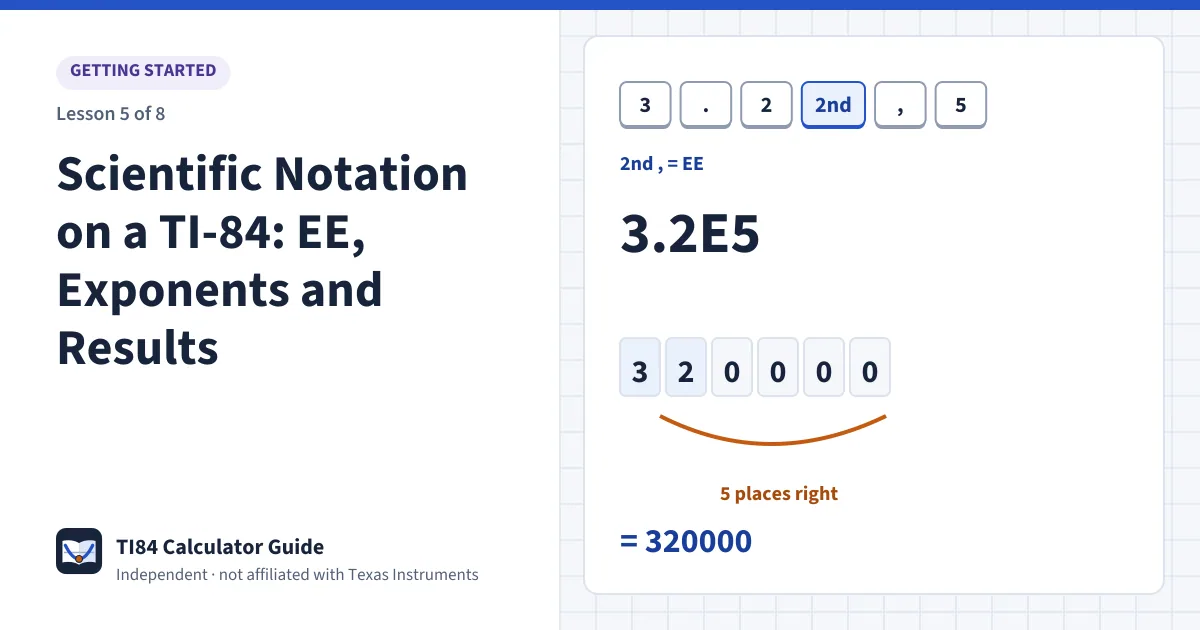
- Sci shows every result as a number between 1 and 10 times a power of ten: 320000 becomes 3.2E5.
- Eng uses exponents that are multiples of three: 320000 becomes 320E3.
See scientific notation on a TI-84 for entering E-notation.
MathPrint versus Classic (CE and MathPrint OS)
On the CE (and TI-84 Plus calculators running a MathPrint operating system), the first MODE line is MATHPRINT CLASSIC. MathPrint shows fractions, exponents and roots in textbook layout and enables templates; Classic shows everything on one line, which some students prefer for long expressions. The math is identical. Calculators that are lent out with Classic selected are a common source of “my fractions look different” questions.
Other CE MODE lines worth knowing
From the CE Getting Started guide’s MODE screen, in order after angle mode:
- FUNCTION PARAMETRIC POLAR SEQ — the graphing type.
- THICK DOT-THICK THIN DOT-THIN — how graphs are drawn.
- REAL a+bi re^(θi) — whether complex results are allowed. See complex numbers.
- FULL HORIZONTAL GRAPH-TABLE — split-screen layouts.
- FRACTION TYPE n/d Un/d and ANSWERS AUTO DEC — fraction display.
- STAT DIAGNOSTICS and STAT WIZARDS — regression r and r² display, and fill-in forms for statistics commands.
- SET CLOCK and LANGUAGE.
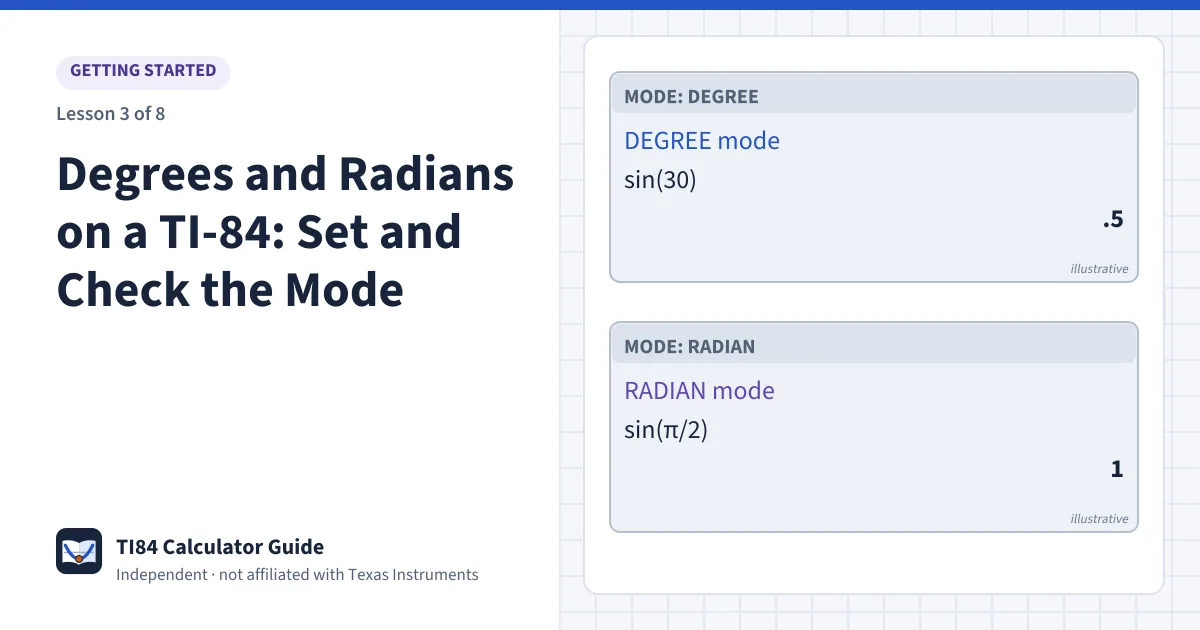
The TI-84 Plus has fewer lines, but Float, Normal/Sci/Eng, Radian/Degree, Func/Par/Pol/Seq and Real/a+bi are present on both.
Restoring default settings without losing data
If MODE has been changed in many places and you want a clean start, the MEM menu’s Reset → Defaults option restores factory settings while keeping stored variables, lists and programs. The TI-84 Plus guidebook distinguishes this from All RAM, which deletes RAM contents. Read the reset guide first and choose Defaults, not All RAM, for a settings-only reset.
Common mistakes
- Fixed decimals left on. Answers like 0.00 for a tiny value are rounded displays. Set Float.
- Sci mode left on after a science class. Every answer appears in E-notation until you choose Normal.
- Resetting memory to fix a dim screen. Adjust contrast or brightness first.
Sources
- TI-84 Plus Graphing Calculator Guidebook (PDF) — Texas Instruments (checked November 23, 2026)
- Getting Started with the TI-84 Plus CE Graphing Calculator (PDF) — Texas Instruments (checked November 23, 2026)
How this guide was made: written by Paul B. Spicer with AI drafting assistance, following our editorial policy. Key sequences and menu names were checked against the Texas Instruments documents listed above; numeric examples are recomputed by automated tests. Diagrams are original illustrations, not screenshots. TI84 Calculator Guide is independently operated and is not affiliated with, sponsored by or endorsed by Texas Instruments. TI-84 Plus, TI-84 Plus CE and related names are used only to describe the calculators our guides cover. Found a mistake? Send a correction.