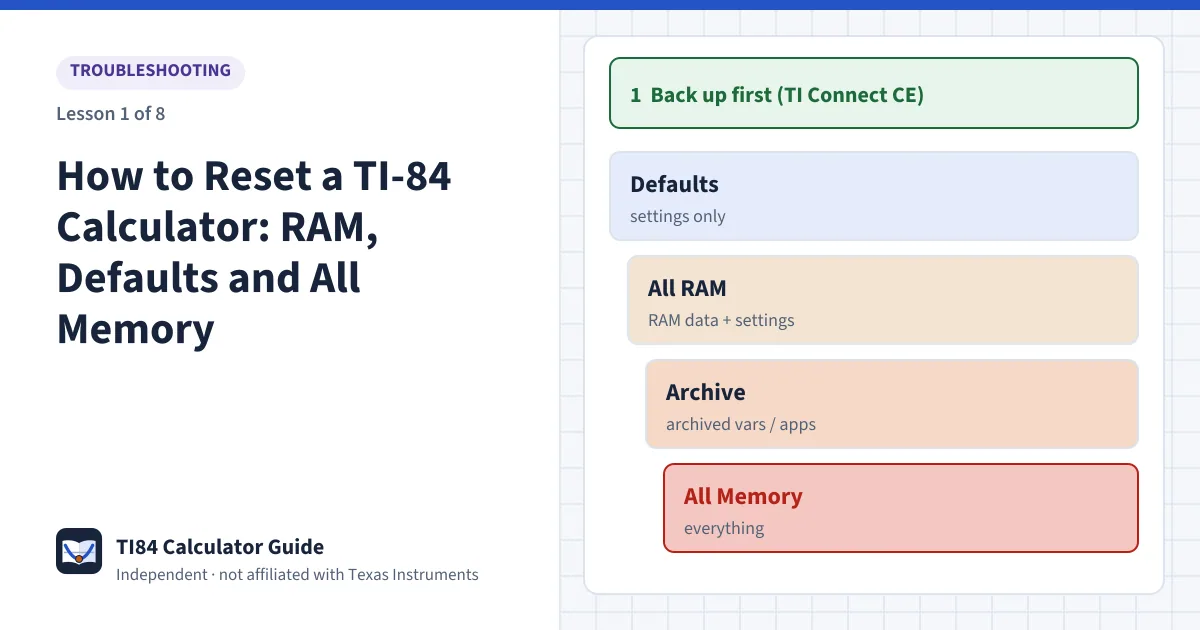
“Reset” on a TI-84 can mean anything from restoring default settings to wiping every program and app. Choosing the smallest reset that solves your problem — after backing up — avoids losing work you cannot get back.
Which reset do you need?
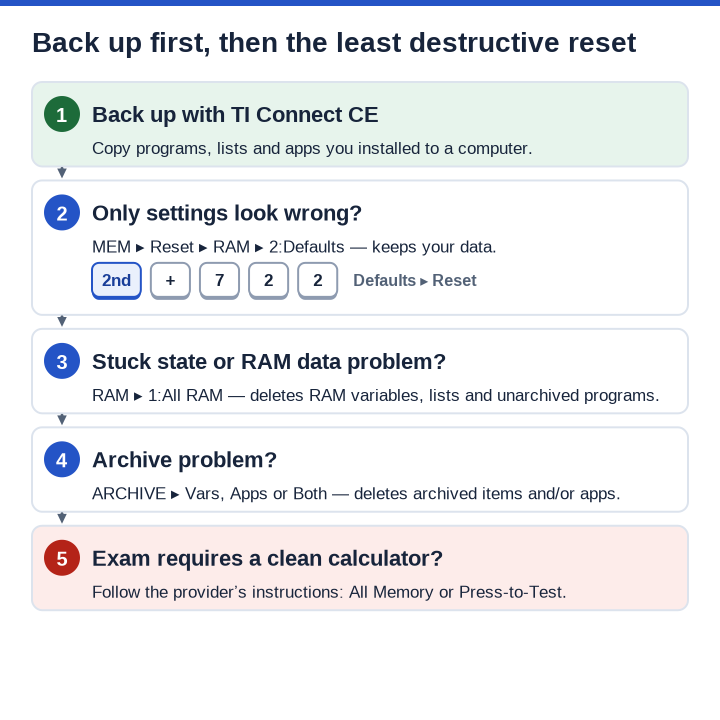
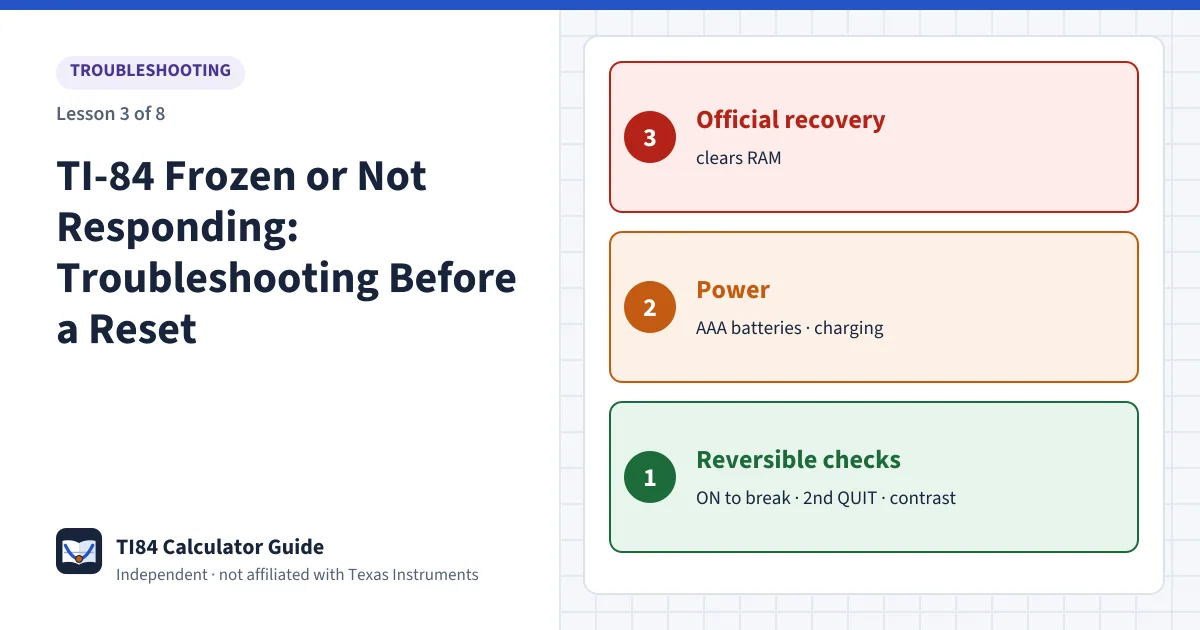
Try the non-destructive fixes before any reset: 2nd MODE (QUIT) to leave menus, CLEAR, turning off Stat Plots, and the frozen calculator steps. Most “broken” calculators are just in an unfamiliar setting.
What each reset removes
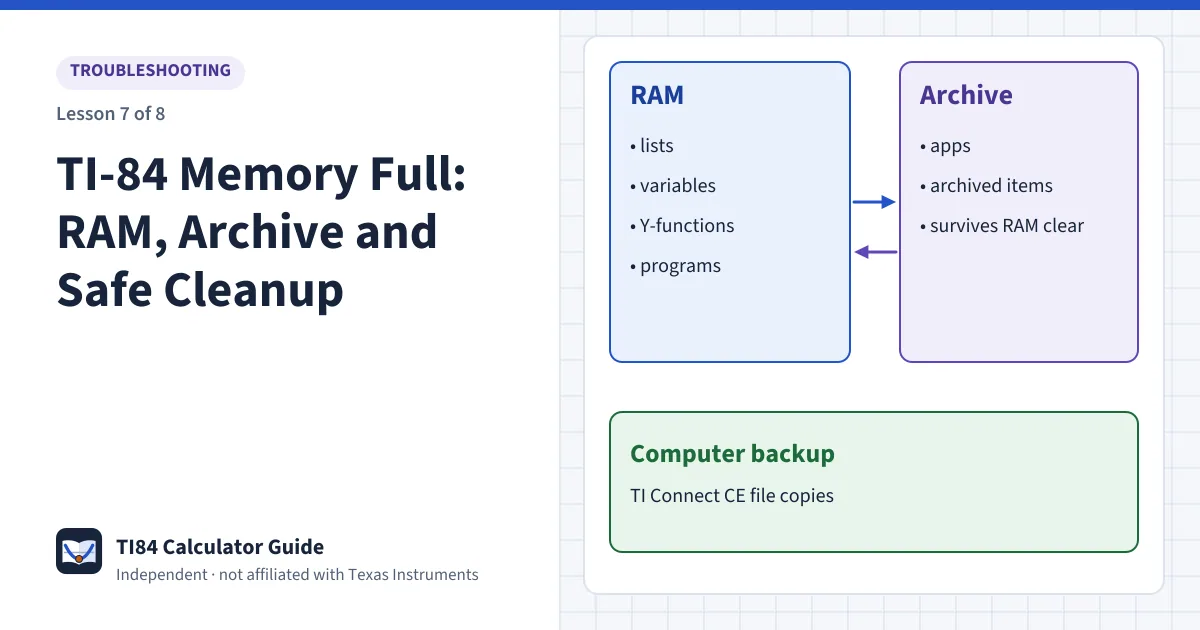
| Reset (MEM ▸ 7:Reset) | Settings | RAM data (variables, lists, Y-functions, RAM programs) | Archived items | Apps |
|---|---|---|---|---|
| RAM ▸ 2:Defaults | Restored to defaults | Kept | Kept | Kept |
| RAM ▸ 1:All RAM | Restored to defaults | Deleted | Kept | Kept |
| ARCHIVE ▸ 1:Vars | — | — | Archived variables deleted | Kept |
| ARCHIVE ▸ 2:Apps | — | — | — | Deleted |
| ARCHIVE ▸ 3:Both | — | — | Deleted | Deleted |
| ALL ▸ 1:All Memory | Restored | Deleted | Deleted | Deleted |
This summary follows the TI-84 Plus guidebook’s MEM menu and TI’s test-prep reset page. Screens can differ slightly by OS version, so read each confirmation screen.
Step 1: Back up
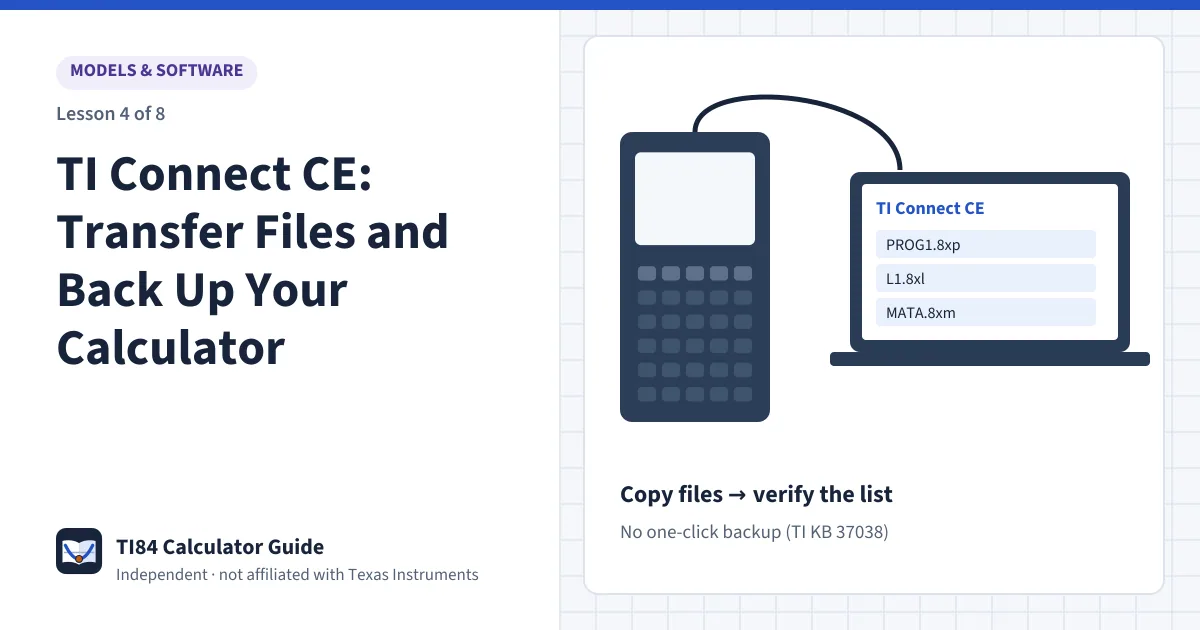
Connect the calculator to a computer with TI Connect CE and copy the files you want to keep — programs, lists, apps you added. TI’s knowledge base notes that TI Connect CE has no single “backup and restore” button; you copy selected files to the computer and send them back later. See TI Connect CE transfer and backup.
Step 2: Open the reset menu
- Press 2nd + (MEM).
- Choose 7:Reset. Three tabs appear: RAM, ARCHIVE and ALL.
Step 3: Choose and confirm
Defaults only (keeps your data):
- On the RAM tab choose 2:Defaults.
- Choose 2:Reset on the confirmation screen. The message “Defaults set” appears.
All RAM:
- On the RAM tab choose 1:All RAM.
- Read the warning, then choose 2:Reset. You see “RAM cleared”.
All Memory (everything):
- Move right to the ALL tab and choose 1:All Memory.
- Choose 2:Reset to confirm. After this the calculator has only the operating system and factory-installed state.
Every confirmation screen offers 1:No — choose it if you have any doubt.
Resetting a calculator that will not respond
If the keys do nothing, the MEM menu is out of reach. Texas Instruments documents hardware steps instead:
- TI-84 Plus CE: TI’s knowledge base (Solution 37116) says to press the RESET button on the back with a paper clip for about two seconds if the display is visible but locked. This clears RAM. If the screen is blank, charge the calculator for at least 10 minutes first.
- TI-84 Plus / Silver Edition: TI’s Solution 37315 describes a RAM clear: remove one AAA battery, hold CLEAR, reinsert the battery and press ON; release CLEAR when “RAM Cleared” appears.
Both delete RAM contents. The frozen calculator guide lists the less destructive checks to try first.
Resetting for an exam
Some exams require calculators to be cleared or placed in Press-to-Test mode. TI’s test-prep guide covers both, and the CE Getting Started guide describes Press-to-Test (hold ◄ ► and press ON from off) with exit through TI Connect CE. Follow the instructions from your exam provider or proctor, not a general guide. See the SAT and ACT policy guides.
After a reset
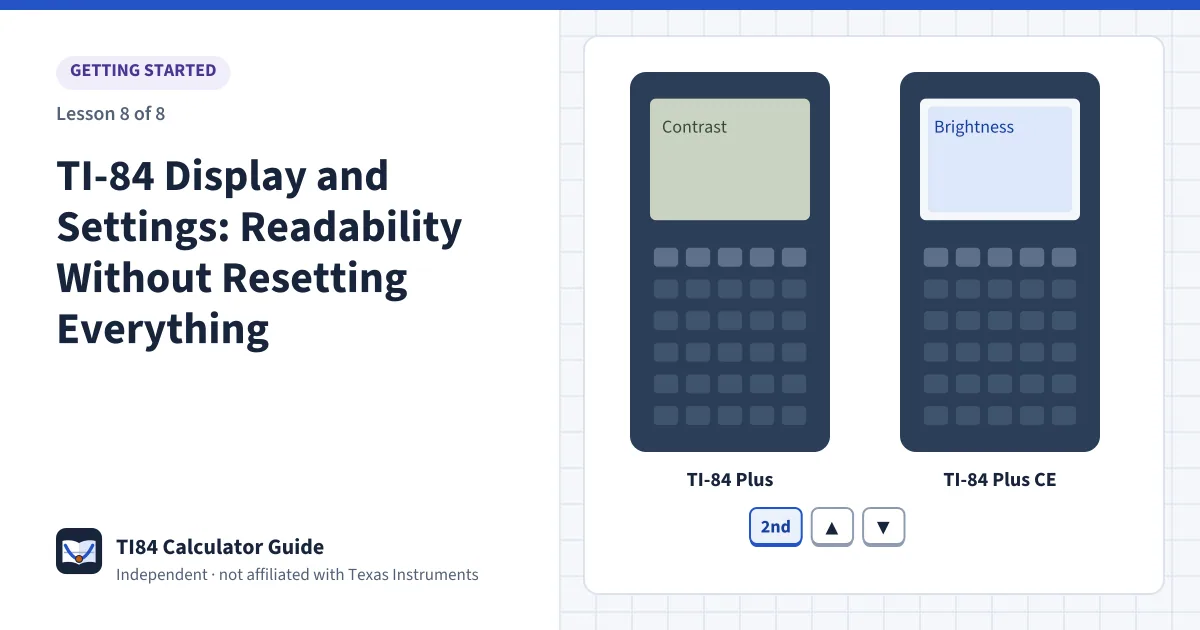
- Check MODE: angle mode, Float and graph type return to defaults.
- Turn diagnostics back on if you use regression r values.
- Send backed-up programs and apps back with TI Connect CE.
Common mistakes
- Using All Memory to fix a settings problem. Defaults is enough.
- Skipping the backup. Apps you installed yourself are deleted by All Memory and Archive ▸ Apps.
- Assuming a reset fixes hardware faults. Stuck keys or a damaged screen need support from TI.
Sources
- Exam preparation guides for your TI: TI-84 series (resetting memory) — Texas Instruments (checked November 23, 2026)
- TI-84 Plus Graphing Calculator Guidebook (PDF) — Texas Instruments (checked November 23, 2026)
- Solution 37116: Troubleshooting a TI-84 Plus CE calculator that is unresponsive — Texas Instruments (checked November 23, 2026)
- Solution 37315: TI-83 Plus or TI-84 Plus family will not turn on or function properly — Texas Instruments (checked November 23, 2026)
- Solution 37038: Backup and restore TI-84 Plus family files with TI Connect CE — Texas Instruments (checked November 23, 2026)
How this guide was made: written by Paul B. Spicer with AI drafting assistance, following our editorial policy. Key sequences and menu names were checked against the Texas Instruments documents listed above; numeric examples are recomputed by automated tests. Diagrams are original illustrations, not screenshots. TI84 Calculator Guide is independently operated and is not affiliated with, sponsored by or endorsed by Texas Instruments. TI-84 Plus, TI-84 Plus CE and related names are used only to describe the calculators our guides cover. Found a mistake? Send a correction.