Retyping long decimals invites rounding errors. The TI-84 gives you three ways to reuse earlier work, and each suits a different job.
Ans: the last answer
Every time you press ENTER on the home screen, the result is stored in a variable called Ans.
- Type 1 2 x² ENTER. Result: 144.
- Type 2nd (−) (ANS) ÷ 4 ENTER. Result: 36.
If the first key on a new line is an operator such as ÷, the calculator inserts Ans for you. Ans keeps full precision, so it is more accurate than retyping a rounded display.
ENTRY: earlier lines
2nd ENTER (ENTRY) pastes your previous entry so you can edit it. Press it again to step further back through the history. This is the fastest way to repeat a calculation with one number changed.
STO►: named variables A–Z and θ
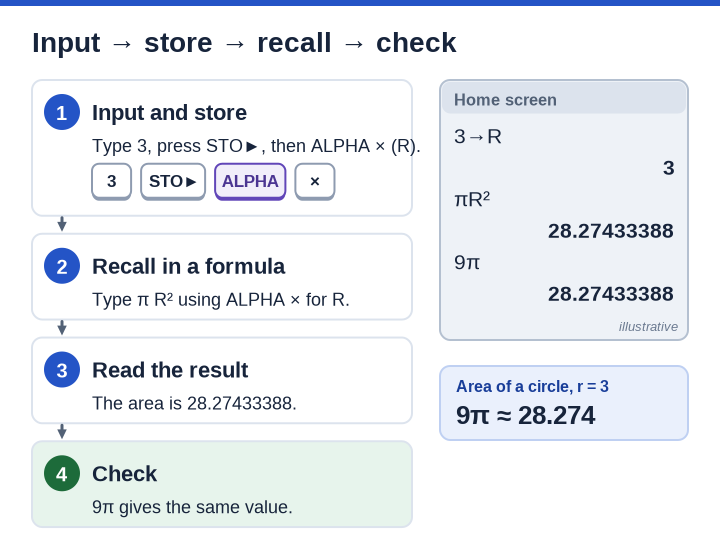
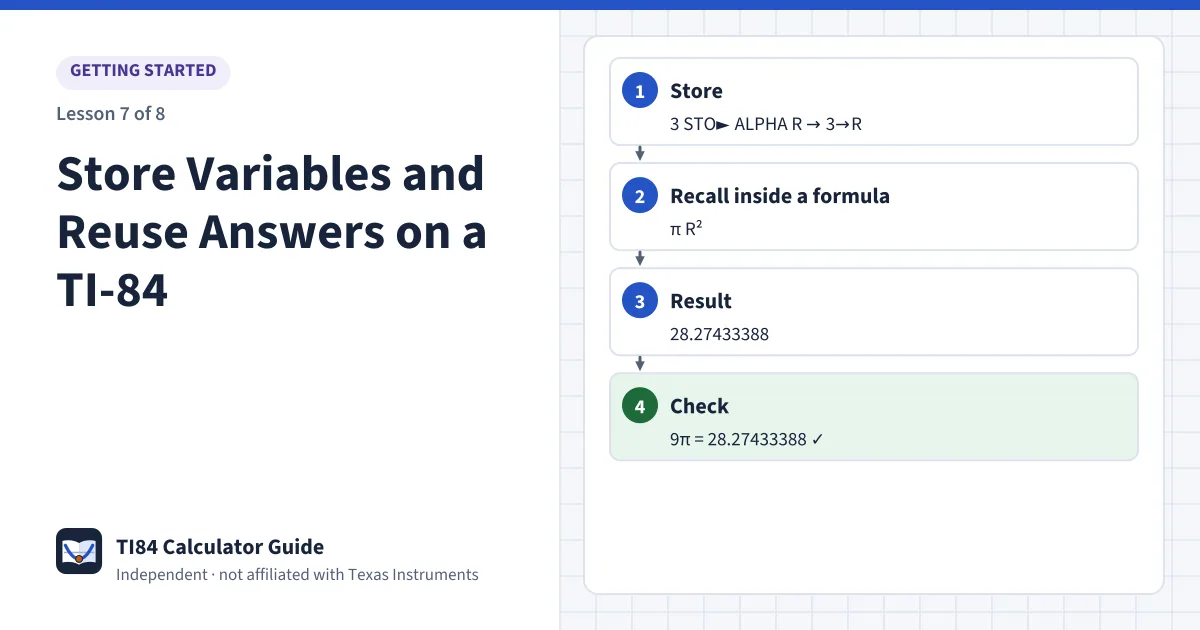
Worked example: the area of a circle with radius 3.
- Type 3, press STO►, then ALPHA × (the letter R). The screen shows
3→R. - Press ENTER. The calculator shows 3, confirming the store.
- Type 2nd ^ (π) ALPHA × (R) x² ENTER.
- Result: 28.27433388. That is 9π, because 3² = 9.
Check it: 9π on its own gives the same 28.27433388.
To use R in another calculation, type ALPHA and the letter key again. The value stays stored after you turn the calculator off, until you overwrite it, delete it or reset memory.
Overwriting is silent
Storing into a letter replaces whatever was there without a warning. If you stored a test result in A last week and type 5→A today, the old value is gone. Two habits help:
- Use different letters for different quantities in a problem (R for radius, H for height).
- Before relying on a stored value, type the letter alone and press ENTER to see it.
The letter X is also used by graphs and tables, and some commands change it. Do not store anything you need to keep in X.
Recall a value into an expression: RCL
2nd STO► (RCL) pastes the contents of a variable into the line you are typing, rather than the variable name. Use it when you want the number itself to appear, for example to edit it.
Store a whole formula: Y-variables
For a formula you will evaluate many times, type it into the Y= editor, for example Y1=πX². Then on the home screen Y1(3) returns 28.27433388. Y-variables are pasted from VARS ► Y-VARS ▸ Function (or the CE’s ALPHA TRACE F4 YVAR shortcut).
Where stored values live
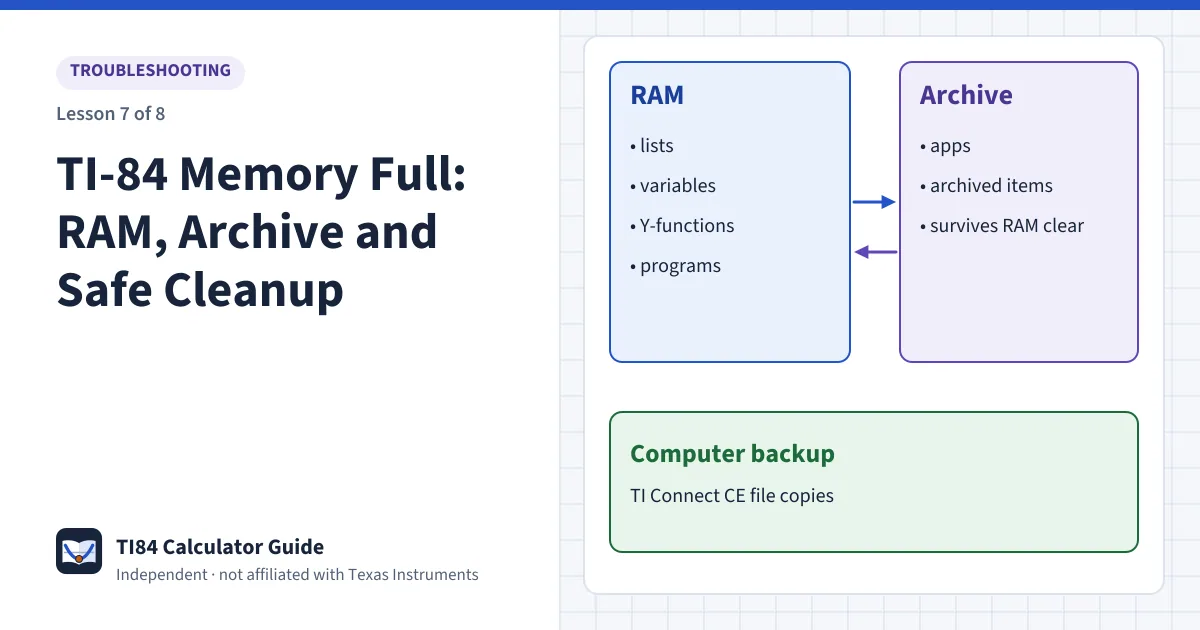
Letters, lists and Y-functions are kept in RAM. A RAM reset or a flat battery on a CE can erase them. If you need to keep data long-term, see memory, RAM and archive and backing up with TI Connect CE.
Common mistakes
- Pressing STO► then forgetting ALPHA.
3→followed by a key without ALPHA stores into whatever that key means, or gives an error. - Expecting Ans to survive a graph. Ans is updated by home-screen results, so check it before using it.
- Using a letter that a program also uses. Programs can overwrite variables silently.
Sources
- TI-84 Plus Graphing Calculator Guidebook (PDF) — Texas Instruments (checked November 23, 2026)
How this guide was made: written by Paul B. Spicer with AI drafting assistance, following our editorial policy. Key sequences and menu names were checked against the Texas Instruments documents listed above; numeric examples are recomputed by automated tests. Diagrams are original illustrations, not screenshots. TI84 Calculator Guide is independently operated and is not affiliated with, sponsored by or endorsed by Texas Instruments. TI-84 Plus, TI-84 Plus CE and related names are used only to describe the calculators our guides cover. Found a mistake? Send a correction.