A TI-84 has about fifty keys but well over a hundred functions. It fits them in by giving most keys three layers. Once you can read those layers and move through a menu confidently, every later lesson is easier.
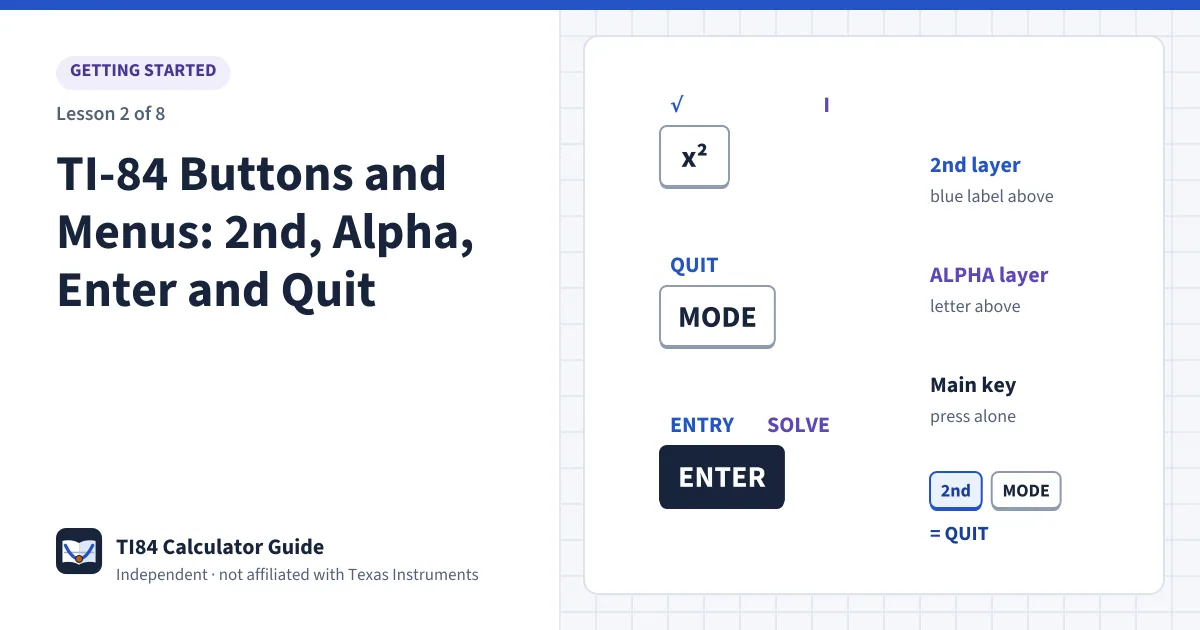
The three layers of a key
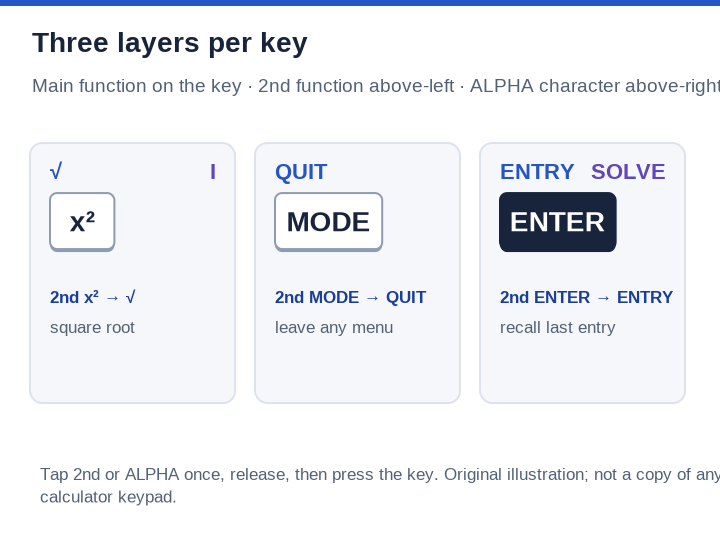
- Main function — printed on the key. Press the key alone.
- 2nd function — printed above the key in the same color as the 2nd key. Press 2nd, release it, then press the key. The cursor changes to show 2nd is active.
- ALPHA character — a letter or symbol printed above the key in the ALPHA color. Press ALPHA, then the key.
You do not hold 2nd or ALPHA down; they work as one-shot shift keys. To type several letters in a row, press 2nd ALPHA (A-LOCK). Press ALPHA again to release the lock.
Some examples used throughout these guides:
| You want | Press | Label above the key |
|---|---|---|
| Square root | 2nd x² | √ |
| π | 2nd ^ | π |
| Last answer | 2nd (−) | ANS |
| Previous entry | 2nd ENTER | ENTRY |
| Leave a menu | 2nd MODE | QUIT |
| Insert mode | 2nd DEL | INS |
| Scientific notation | 2nd , | EE |
| Turn off | 2nd ON | OFF |
How TI-84 menus work
Keys such as MATH, STAT, VARS and APPS open menus instead of typing something. A menu has:
- Tabs across the top such as
MATH NUM CMPLX PROB. Move between them with ◄ ►. - Numbered items down the side. Items beyond 9 use 0 and then letters (A, B, C…).
- A down arrow next to the last visible number when more items exist below.
To choose an item, either press its number or letter, or arrow down to it and press ENTER. Pressing the number is faster once you know it: MATH 1 always pastes ►Frac on both the Plus and the CE.
Wizards and shortcut menus on the CE
Newer CE operating systems add two helpers:
- Stat Wizards (turned on in MODE) show a form with labeled fields such as
List:andFreqList:when you choose a statistics command. You fill the fields and select Calculate. - Shortcut menus appear when you press ALPHA with one of the five keys under the screen: F1 FRAC, F2 FUNC, F3 MTRX and F4 YVAR. They give quick access to fraction templates, functions, matrices and Y-variables.
The TI-84 Plus has no wizards; you type arguments after the command name, separated by commas.
ENTER, CLEAR, QUIT and Reset are not the same
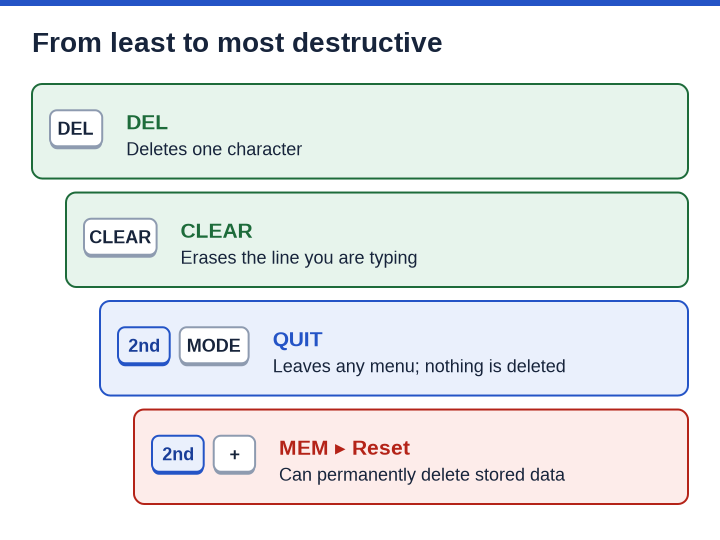
- ENTER evaluates what you typed or selects a highlighted item.
- DEL removes one character.
- CLEAR erases the line you are editing or a function in Y=. On an empty home-screen line it clears the display history only.
- 2nd MODE (QUIT) returns to the home screen from any menu or editor.
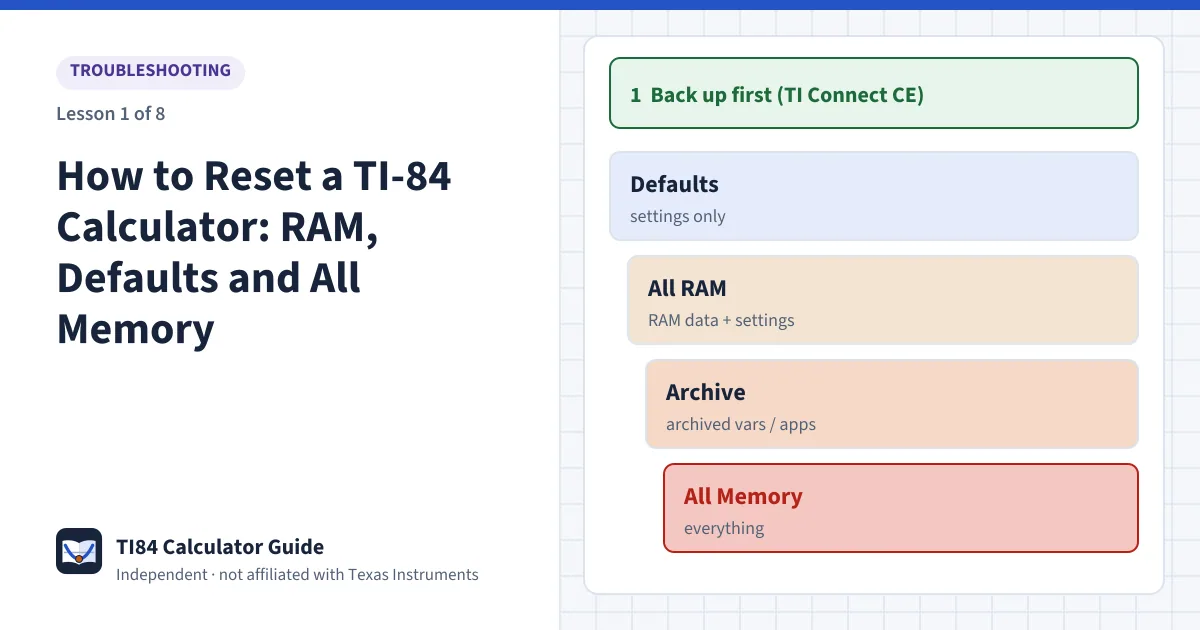
- 2nd + (MEM) opens the memory menu, which includes Reset. Resets can permanently delete lists, programs and apps.
When something looks wrong, work down that list from the top. Most “stuck” calculators simply have a menu open.
Breaking out of a running program
If a program or long calculation is running and the busy indicator keeps moving, press ON. The TI-84 Plus guidebook describes this as the way to break a running program; you will see an ERR:BREAK message with the option to quit.
Practice drill
- Press MATH, move to the
NUMtab with ►, and read the first item (abs(). Press 2nd MODE to quit. - Type 2nd x² 8 1 ) ENTER. The result is 9.
- Press 2nd ENTER to recall
√(81), change 81 to 49 with DEL and digits, and press ENTER. The result is 7. - Press 2nd ALPHA, type
AB, then press CLEAR. Nothing was stored; you only typed letters.
If you can do those four without hesitation, move on to degrees and radians.
Common mistakes
- Holding 2nd down like a Shift key. It does no harm, but you do not need to; tap it once.
- Pressing 2nd twice. The second press cancels the first.
- Choosing a menu item by the wrong number after an OS update. Read the item name, not only the number.
- Using Reset to escape a menu. QUIT is all you need.
Sources
- TI-84 Plus Graphing Calculator Guidebook (PDF) — Texas Instruments (checked November 23, 2026)
- Getting Started with the TI-84 Plus CE Graphing Calculator (PDF) — Texas Instruments (checked November 23, 2026)
How this guide was made: written by Paul B. Spicer with AI drafting assistance, following our editorial policy. Key sequences and menu names were checked against the Texas Instruments documents listed above; numeric examples are recomputed by automated tests. Diagrams are original illustrations, not screenshots. TI84 Calculator Guide is independently operated and is not affiliated with, sponsored by or endorsed by Texas Instruments. TI-84 Plus, TI-84 Plus CE and related names are used only to describe the calculators our guides cover. Found a mistake? Send a correction.