The TI-84 is not a computer algebra system: it does not rearrange equations symbolically. What it does have is a numeric solver that searches for a value of the variable that makes both sides equal. Used with a sensible guess and a substitution check, it is fast and reliable.
The worked example
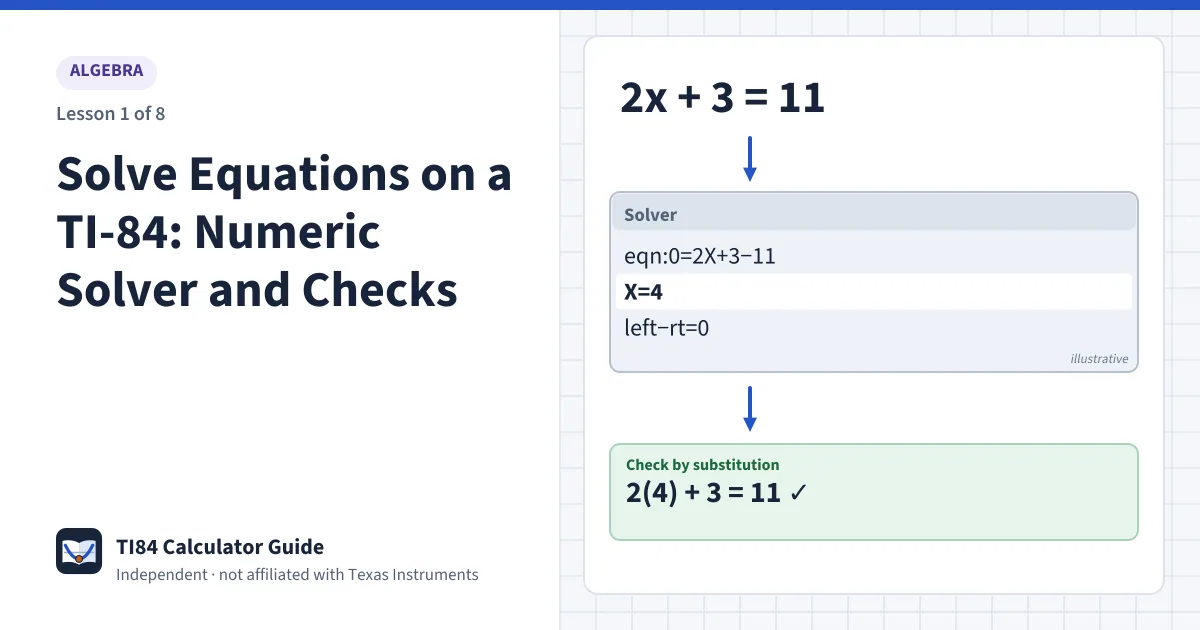
Solve 2x + 3 = 11. By hand: 2x = 8, so x = 4.
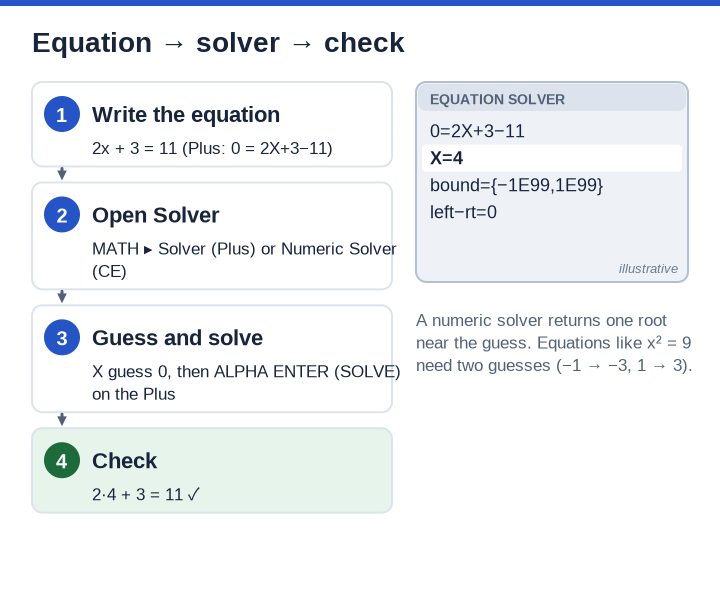
TI-84 Plus: MATH Solver
- Press MATH and scroll to Solver. The TI-84 Plus guidebook lists it as item B; very old operating systems used 0. Press ENTER.
- The EQUATION SOLVER screen shows
eqn:0=. The Plus solver wants the equation rearranged to equal zero, so type2X+3−11and press ENTER. (If an old equation is shown, press ▲ to edit it, CLEAR, then type.) - The next screen lists the variable X= with a value and a
bound={−1E99,1E99}line. Type a guess for X, such as 0. - With the cursor on the X line, press ALPHA ENTER (SOLVE).
- The solver shows X=4 and a line
left−rt=0, meaning the two sides now differ by 0.
TI-84 Plus CE: Numeric Solver
The CE Getting Started guide (OS 5.7) describes a two-sided entry:
- Press MATH and choose C:Numeric Solver.
- Enter the left side in E1 (
2X+3) and the right side in E2 (11), then choose OK at the bottom of the screen. - Choose the variable to solve for, enter a guess, adjust the optional bounds if needed, and choose SOLVE.
- The result is X=4.
Menu letters can differ on other OS versions; look for the item named Solver or Numeric Solver.
Check the answer
Substitute back on the home screen: 2×4+3 gives 11. After solving, the value is stored in X, so 2X+3 also returns 11. A check takes seconds and catches typing errors in the equation itself.
Guesses, bounds and hidden solutions
A numeric solver starts at your guess and moves toward a nearby solution. It returns one value. Equations with several solutions need several runs:
- x² = 9 has solutions −3 and 3. A guess of 1 returns 3; a guess of −1 returns −3.
- Restricting the bound list (for example
{−10,0}) forces the search into an interval.
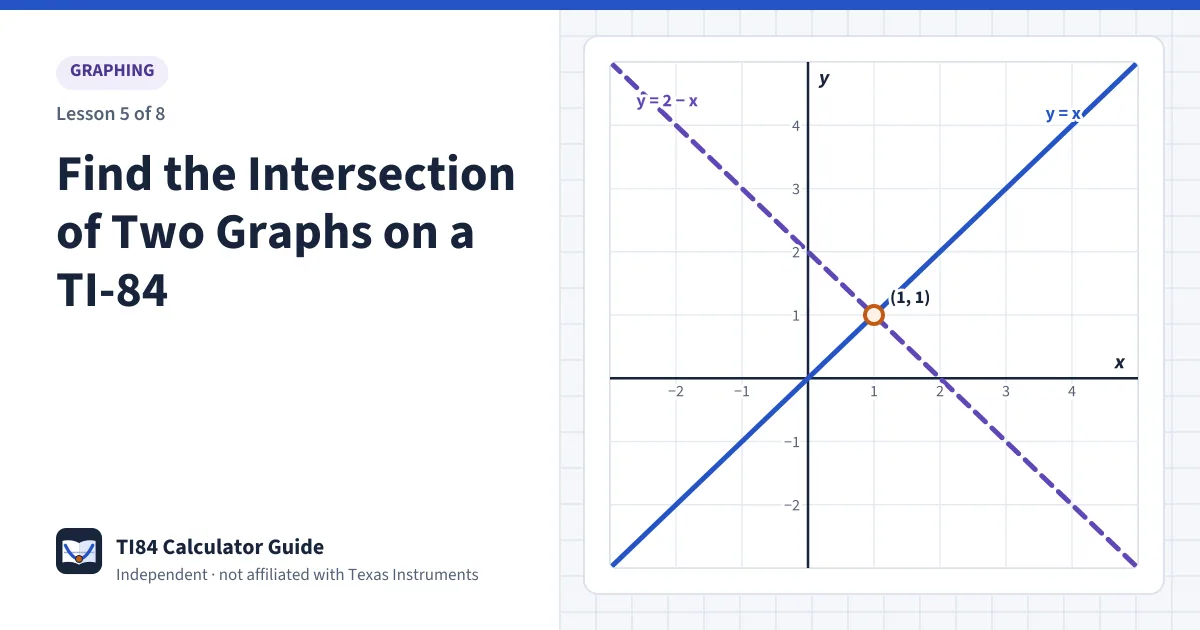
To see how many solutions to expect, graph each side and count intersections — see finding intersections. If the solver cannot find a solution near your guess, the TI-84 reports an error rather than a false value; on the Plus this can be ERR:NO SIGN CHNG or a bad-guess message.
Solving for a variable other than X
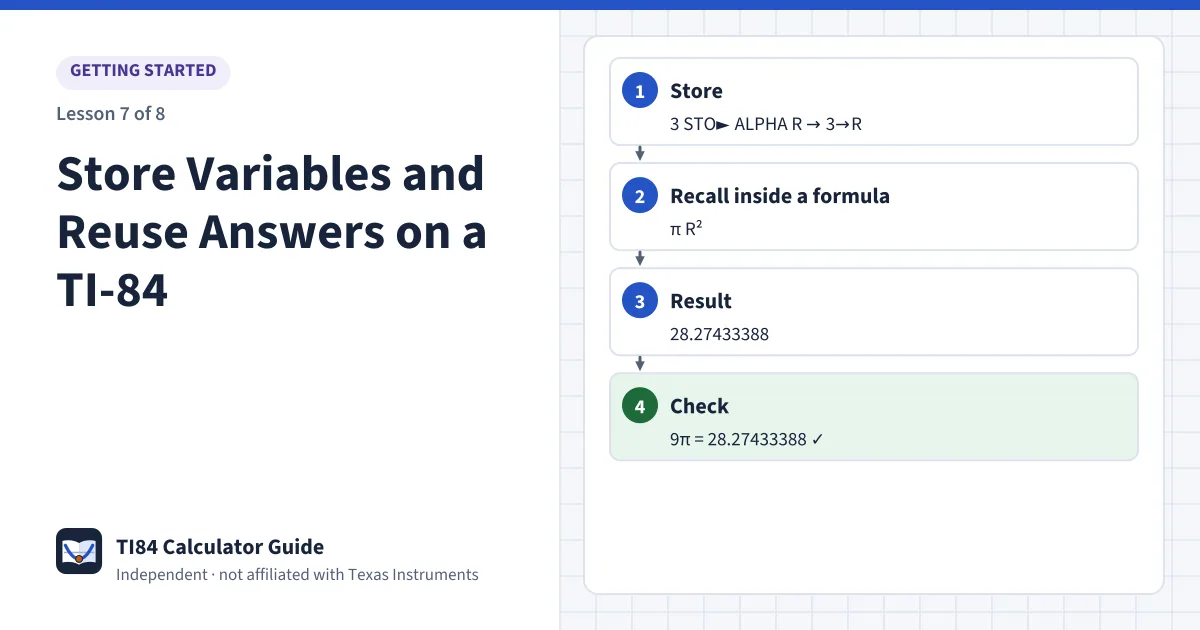
The solver handles any variable letter. Enter A=πR² style equations with several letters (Plus: 0=πR²−A), give values for all but one, put the cursor on the unknown and solve. For example, with A = 50, the radius is R ≈ 3.989422804.
Common mistakes
- Plus solver: forgetting the 0=. Typing
2X+3=11is not allowed in the eqn:0= line; move 11 to the left. - Stale equation. The solver remembers the last equation; check the top line before solving.
- Old value in X. The guess field shows the current X, which may be far from the root. Type a fresh guess.
Practice
Our independent scientific calculator is useful for the substitution check (2*4+3 → 11). For quadratics, the quadratic solver shows every real or complex root at once. Neither is a TI-84 emulator.
Sources
- TI-84 Plus Graphing Calculator Guidebook (PDF) — Texas Instruments (checked November 23, 2026)
- Getting Started with the TI-84 Plus CE Graphing Calculator (PDF) — Texas Instruments (checked November 23, 2026)
How this guide was made: written by Paul B. Spicer with AI drafting assistance, following our editorial policy. Key sequences and menu names were checked against the Texas Instruments documents listed above; numeric examples are recomputed by automated tests. Diagrams are original illustrations, not screenshots. TI84 Calculator Guide is independently operated and is not affiliated with, sponsored by or endorsed by Texas Instruments. TI-84 Plus, TI-84 Plus CE and related names are used only to describe the calculators our guides cover. Found a mistake? Send a correction.