Operating-system updates add features and fixes. On the TI-84 Plus CE, Texas Instruments recommends updating with the CE Bundle, a single file containing the OS and the matching apps. This guide follows TI’s own knowledge-base steps; we do not host or link OS files ourselves.
Before you start
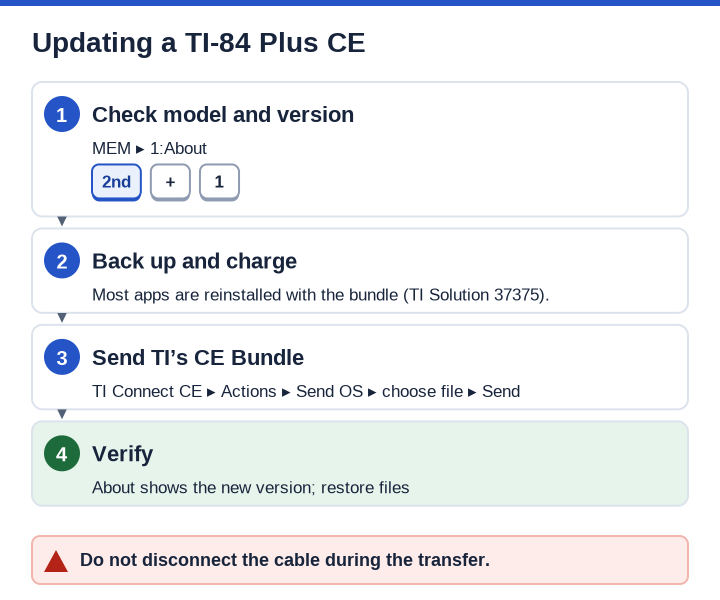
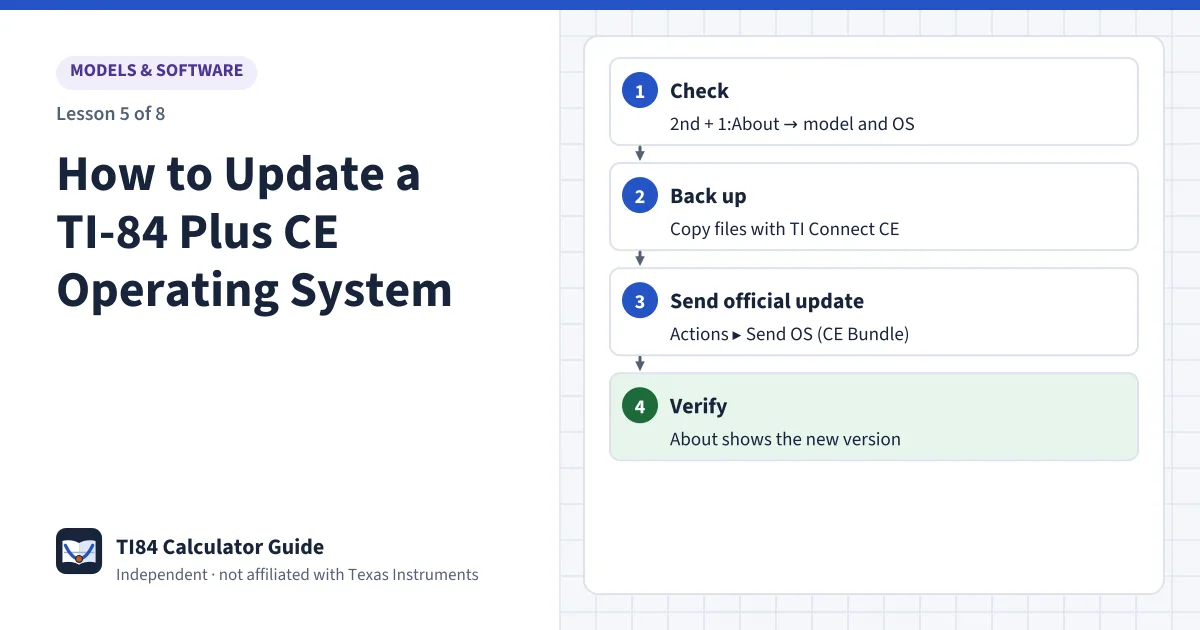
- Check the model and version. Press 2nd + (MEM) and choose 1:About. The screen shows the calculator model and OS version. Make sure you download the file for your model.
- Charge the calculator so it does not run down mid-transfer.
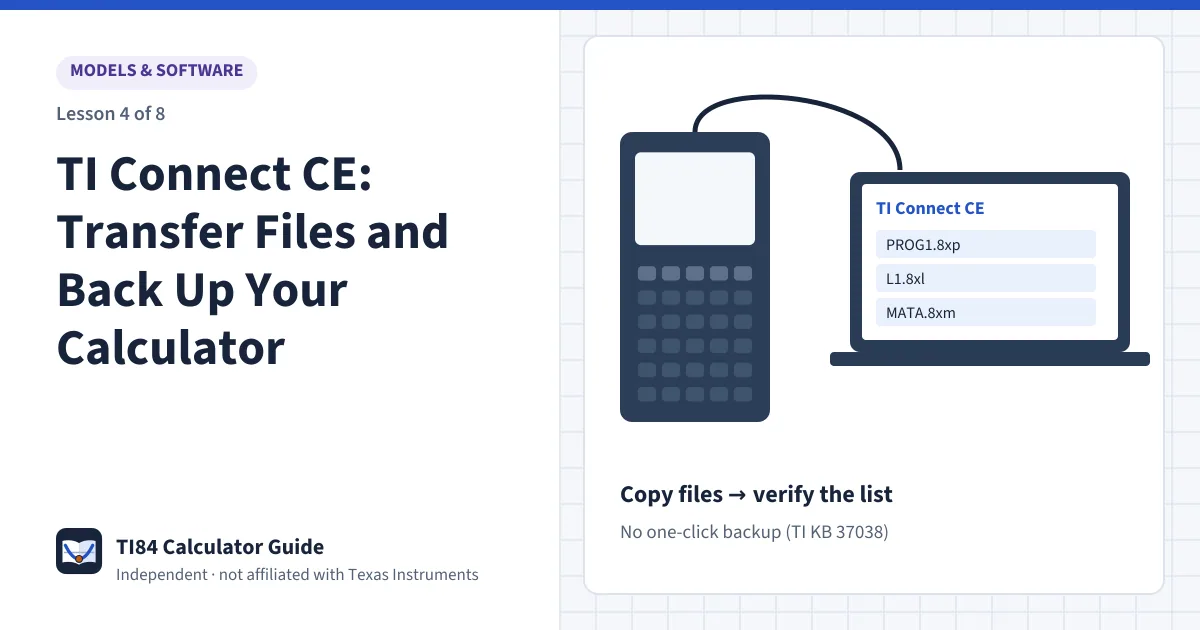
- Back up. TI’s update instructions begin with “back up your calculator files.” TI’s Solution 37375 explains that because most apps are updated with the OS, an update requires most apps to be reinstalled to match. See TI Connect CE transfer and backup.
- Install the latest TI Connect CE from Texas Instruments.
Download the update from Texas Instruments
TI’s CE eGuide gives education.ti.com/84ceupdate as the starting point for the latest CE Bundle. TI’s Solution 37042 also links individual OS files for each TI-84 Plus model, including the TI-84 Plus CE and CE Python. Save the file somewhere easy to find.
Send it with TI Connect CE
Following Solution 37042 and the TI Connect CE eGuide:
- Open TI Connect CE.
- Connect the calculator by USB, press ON, and check it appears under connected calculators.
- Click Actions and choose Send OS (in some versions the item reads Send OS/Bundles to Calculators…).
- Navigate to the downloaded file and click Open.
- In the dialog that appears, click Send. The transfer begins.
- Do not disconnect the cable until the transfer is finished.
TI’s Chromebook app (TI Connect CE App for Chrome OS) can also update the OS, but TI notes it does not support the CE Bundle file — use the plain OS file there.
Verify
When the calculator restarts, open 2nd + 1:About again and check the new version. Then send back any programs or apps you copied off, and check MODE settings.
If it seems stuck
- TI’s Solution 36981 describes TI Connect CE continuing to show “Validating OS…” after a successful transfer. TI’s fix: unplug and re-plug the calculator, turn it on, or close and reopen TI Connect CE.
- If the calculator itself loops on “Validating Operating System…” or flashes white, follow TI’s Solution 40446.
- The charging station cannot install updates; TI notes it only charges.
What an update does not guarantee
- It does not turn a TI-84 Plus CE into a CE Python (why).
- Third-party programs and apps may not all work on a new OS; test anything you depend on.
- An OS update is not an exam reset. For exam preparation, follow the test provider’s rules.
TI-84 Plus (non-CE)
TI’s Solution 37042 covers the whole TI-84 Plus family with TI Connect CE, so the same send-OS steps apply with the OS file for your exact model. The non-CE models do not use the CE Bundle.
Sources
- Solution 37042: Updating the OS on the TI-84 Plus family using TI Connect CE — Texas Instruments (checked November 23, 2026)
- Solution 37375: Steps to update the TI-84 Plus CE to the latest OS and apps — Texas Instruments (checked November 23, 2026)
- TI Connect CE eGuide: Update TI-84 Plus CE calculators — Texas Instruments (checked November 23, 2026)
- TI-84 Plus CE eGuide: Update latest release CE Bundle using TI Connect CE — Texas Instruments (checked November 23, 2026)
- Solution 36981: “Validating OS…” continues to display after an update — Texas Instruments (checked November 23, 2026)
How this guide was made: written by Paul B. Spicer with AI drafting assistance, following our editorial policy. Key sequences and menu names were checked against the Texas Instruments documents listed above; numeric examples are recomputed by automated tests. Diagrams are original illustrations, not screenshots. TI84 Calculator Guide is independently operated and is not affiliated with, sponsored by or endorsed by Texas Instruments. TI-84 Plus, TI-84 Plus CE and related names are used only to describe the calculators our guides cover. Found a mistake? Send a correction.