A minimum is a lowest point and a maximum a highest point on a graph. The TI-84 finds them numerically between bounds you set, the same way it finds zeros.
The worked example
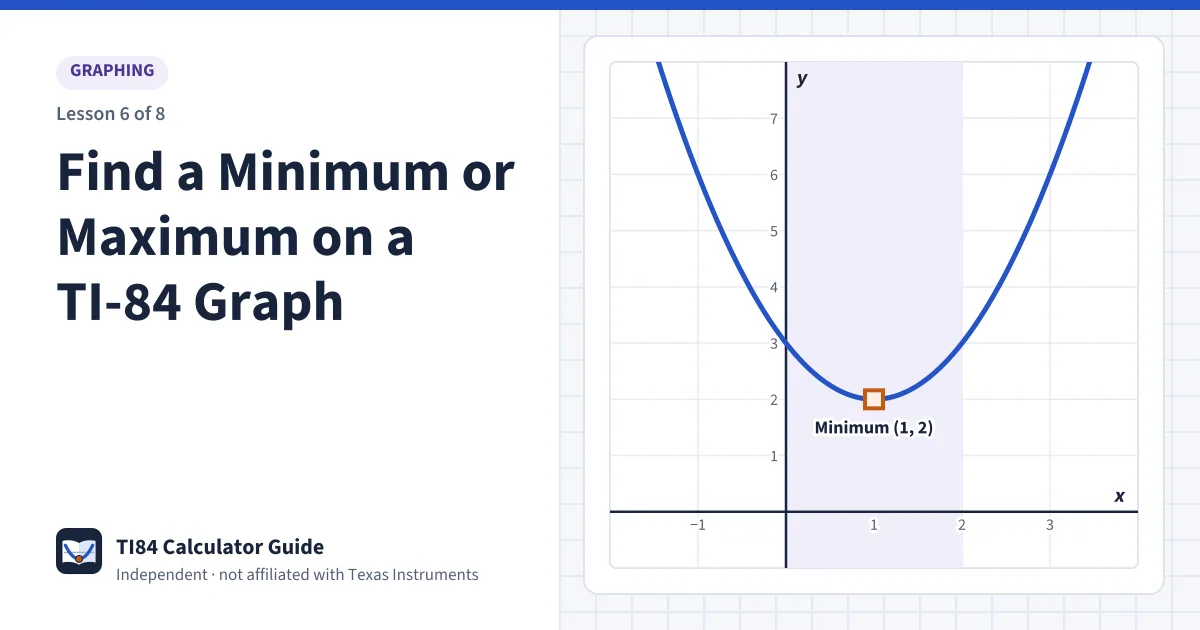
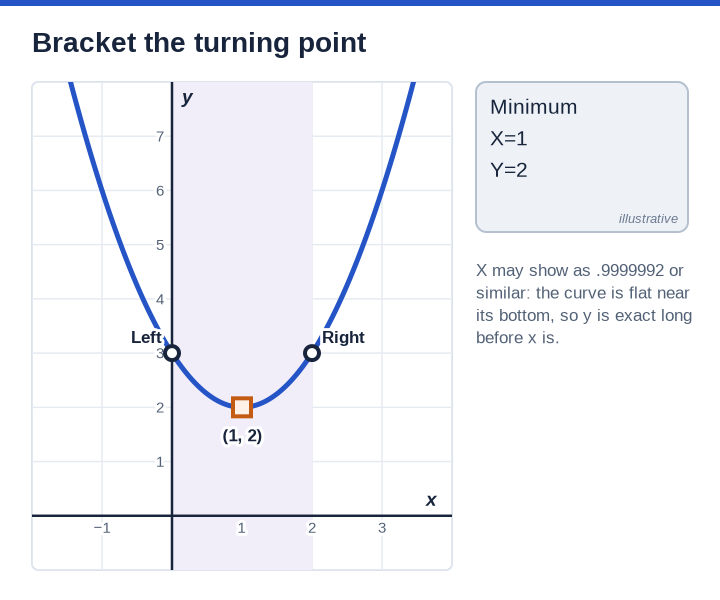
We use y = (x − 1)² + 2. A square is never negative, so the smallest value of (x − 1)² is 0, at x = 1. The minimum is therefore (1, 2), and the parabola opens upward, so there is no maximum.
Find the minimum
- Enter
Y1=(X−1)²+2and press ZOOM 6. - Press 2nd TRACE (CALC) and choose 3:minimum.
- Left Bound? Type 0 or move left of the bottom and press ENTER.
- Right Bound? Type 2 and press ENTER.
- Guess? Press ENTER.
- The screen shows Minimum with an X-value at or extremely close to 1 and Y=2.
For a maximum, use 4:maximum with the same three prompts. For example, y = −x² + 4x has a maximum at (2, 4).
Local, window and global extremes
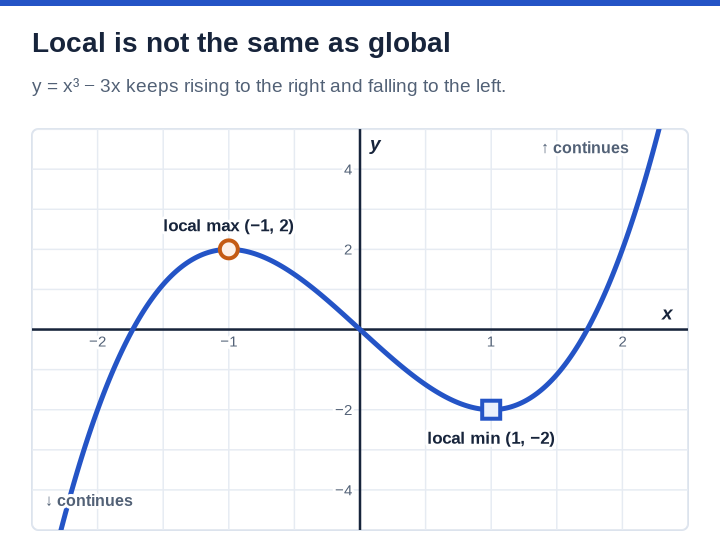
- A local minimum or maximum is the lowest or highest point nearby. y = x³ − 3x has a local maximum at (−1, 2) and a local minimum at (1, −2).
- A window extreme is the lowest or highest point on screen, which might just be where the graph is cut off at the edge.
- A global extreme is the lowest or highest value anywhere. y = x³ − 3x has none: it keeps rising to the right and falling to the left.
CALC minimum and maximum report the extreme within your bounds. If the bounds include an edge where the graph is still falling, the result can be the edge, not a turning point. Always check that the curve really turns at the reported x.
Using fMin and fMax on the home screen
The MATH menu also has fMin( and fMax(, which return the x-value of a minimum or maximum on an interval without graphing. On the TI-84 Plus the syntax is fMin(expression,variable,lower,upper), for example fMin((X−1)²+2,X,0,2), which returns an x-value close to 1. Then evaluate the function at that x to get y.
Common mistakes
- Bounds that do not surround the turning point. The result is an endpoint.
- Using minimum on the wrong curve. Check the function name at the top of the screen.
- Reporting too many digits. A result like 1.0000013 should be stated as x = 1 when the context calls for it.
Practice
Our independent graphing calculator finds roots and intersections in the visible window and lets you evaluate any x; you can check y(1) = 2 for this example. It does not have a minimum command, which is a real difference from the TI-84.
Sources
- TI-84 Plus Graphing Calculator Guidebook (PDF) — Texas Instruments (checked November 23, 2026)
How this guide was made: written by Paul B. Spicer with AI drafting assistance, following our editorial policy. Key sequences and menu names were checked against the Texas Instruments documents listed above; numeric examples are recomputed by automated tests. Diagrams are original illustrations, not screenshots. TI84 Calculator Guide is independently operated and is not affiliated with, sponsored by or endorsed by Texas Instruments. TI-84 Plus, TI-84 Plus CE and related names are used only to describe the calculators our guides cover. Found a mistake? Send a correction.