A TI-84 screen shows a rectangle of the coordinate plane. If the interesting part of a graph is outside that rectangle, you see nothing — even though the function is correct. Learning to set the window is the single most useful graphing skill after typing the function.
The six window values
Press WINDOW. The TI-84 Plus guidebook lists these variables (the CE adds a few more lines below them):
| Setting | Meaning | ZStandard default |
|---|---|---|
| Xmin, Xmax | Left and right edges of the screen | −10, 10 |
| Xscl | Distance between tick marks on the x-axis | 1 |
| Ymin, Ymax | Bottom and top edges | −10, 10 |
| Yscl | Distance between tick marks on the y-axis | 1 |
You can type expressions into these fields, such as 2π or −3.5, and press ENTER to move down. Press GRAPH when you are done. Xmin must be less than Xmax and Ymin less than Ymax, otherwise you get ERR:WINDOW RANGE.
A graph that hides outside the standard window
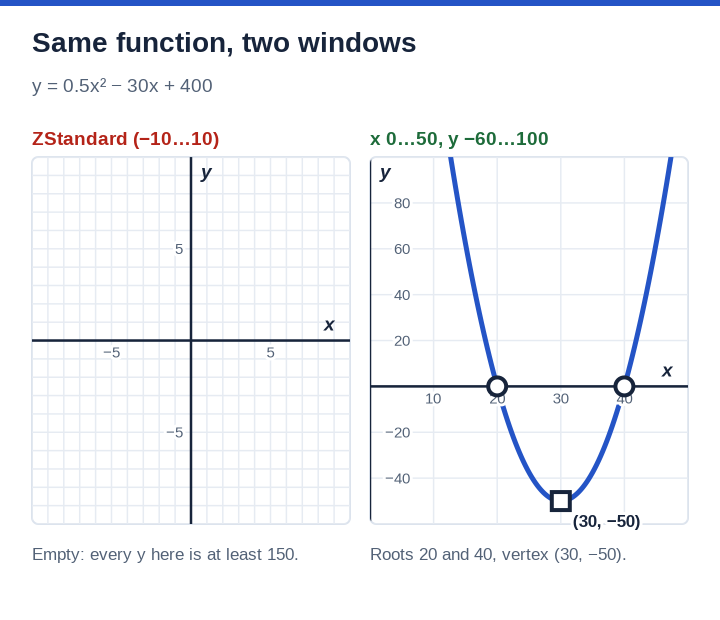
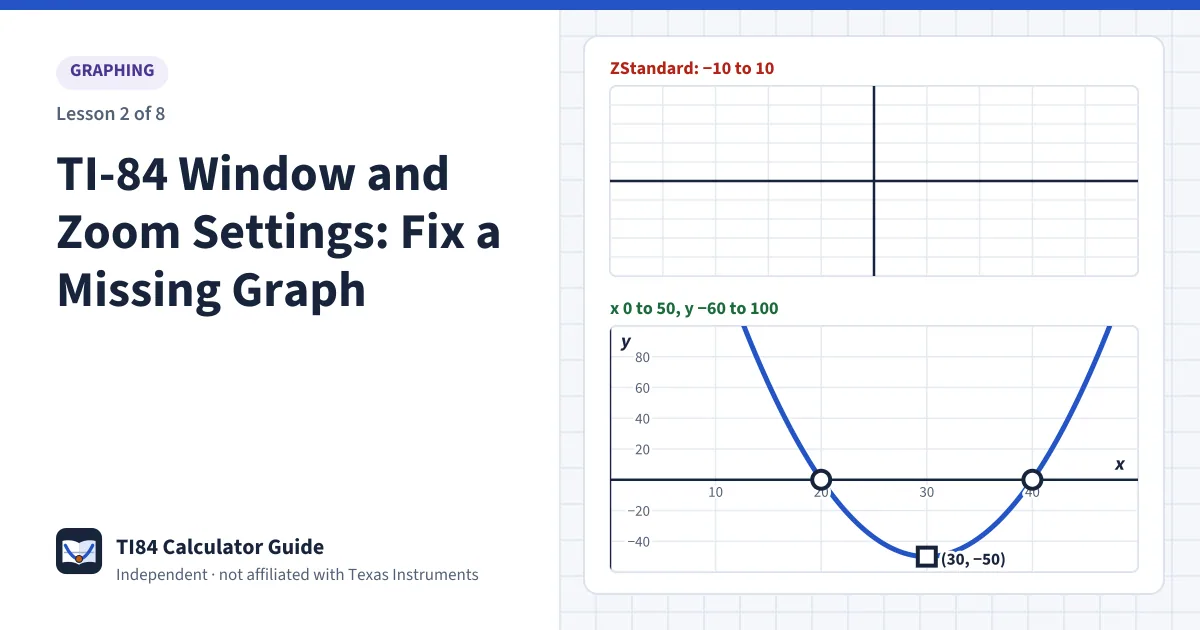
Try it: enter Y1=0.5X²−30X+400 and press ZOOM 6. The screen shows only the axes. Between x = −10 and 10 every y-value is at least 150, far above Ymax = 10.
Now choose a better window from the algebra:
- The vertex is at x = −b/(2a) = 30/1 = 30, where y = 0.5(900) − 900 + 400 = −50.
- The roots solve x² − 60x + 800 = 0, giving x = 20 and x = 40.
- Press WINDOW and set Xmin = 0, Xmax = 50, Xscl = 10, Ymin = −60, Ymax = 100, Yscl = 20.
- Press GRAPH. The whole U shape appears, crossing at 20 and 40.
Even without algebra, a table helps: make a table of values starting at 0 with step 10 shows where y changes sign.
The ZOOM menu
Press ZOOM. The TI-84 guidebook lists these items:
| Item | What it does | When to use it |
|---|---|---|
| 1:ZBox | You draw a rectangle; it becomes the new window | Close-up of one feature |
| 2:Zoom In / 3:Zoom Out | Magnify or shrink around a point you choose | Quick exploration |
| 4:ZDecimal | Window where trace steps are 0.1 | Clean x-values when tracing |
| 5:ZSquare | Equal scale on both axes | Circles look round, perpendicular lines look perpendicular |
| 6:ZStandard | −10 to 10 on both axes | Reset after experimenting |
| 7:ZTrig | Window sized for trig graphs in the current angle mode | Sine and cosine |
| 8:ZInteger | Integer trace steps | Counting problems |
| 9:ZoomStat | Fits the window to the data in Stat Plots | Scatter plots and histograms |
| 0:ZoomFit | Keeps Xmin/Xmax, recalculates Ymin/Ymax to fit the function | Function runs off the top or bottom |
ZoomFit is handy when you know the x-range but not the y-range. Set Xmin = 0 and Xmax = 50 for the example above, then choose ZOOM 0. The calculator picks a y-range covering the curve on that interval. ZoomFit does not change Xmin or Xmax, so it cannot find a graph that is off to the side.
Choosing a window yourself
- Decide which x-values matter (from the problem, roots or a table).
- Estimate the smallest and largest y-values in that range.
- Add a margin of about 10% on each side.
- Choose scale values that give 5–10 tick marks per axis.
Common mistakes
- Expecting ZStandard to find the graph. It always shows −10 to 10, wherever the curve is.
- Huge Xscl or Yscl. A scale of 0.001 on a wide window draws thousands of tick marks and makes the axes look thick.
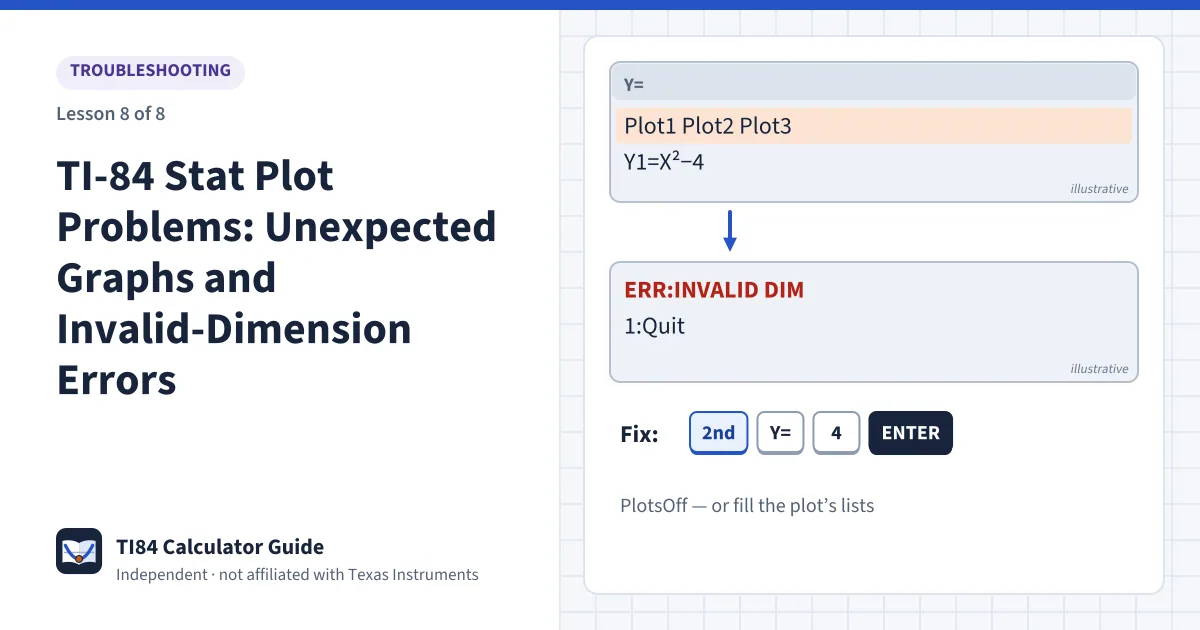
- Confusing a window problem with an error. A missing graph is not an error message. Errors such as INVALID DIM are covered in the stat plot guide.
Practice
Our independent graphing calculator lets you pan and zoom with the mouse or keyboard and type exact window bounds, so you can rehearse choosing a window before repeating it on the TI-84. It does not reproduce the TI-84 ZOOM menu.
Sources
- TI-84 Plus Graphing Calculator Guidebook (PDF) — Texas Instruments (checked November 23, 2026)
How this guide was made: written by Paul B. Spicer with AI drafting assistance, following our editorial policy. Key sequences and menu names were checked against the Texas Instruments documents listed above; numeric examples are recomputed by automated tests. Diagrams are original illustrations, not screenshots. TI84 Calculator Guide is independently operated and is not affiliated with, sponsored by or endorsed by Texas Instruments. TI-84 Plus, TI-84 Plus CE and related names are used only to describe the calculators our guides cover. Found a mistake? Send a correction.