Every statistics command on the TI-84 reads data from lists. Getting data into the right lists, in the right rows, is the foundation for everything else in the Statistics hub.
Open the list editor
Press STAT and choose 1:Edit. You see columns headed L1, L2, L3 (scroll right for L4–L6). The TI-84 Plus guidebook allows up to 999 elements in a list.
If a column such as L1 is missing, choose STAT 5:SetUpEditor and press ENTER; this restores L1–L6 to the editor without deleting anything.
Enter one-variable data
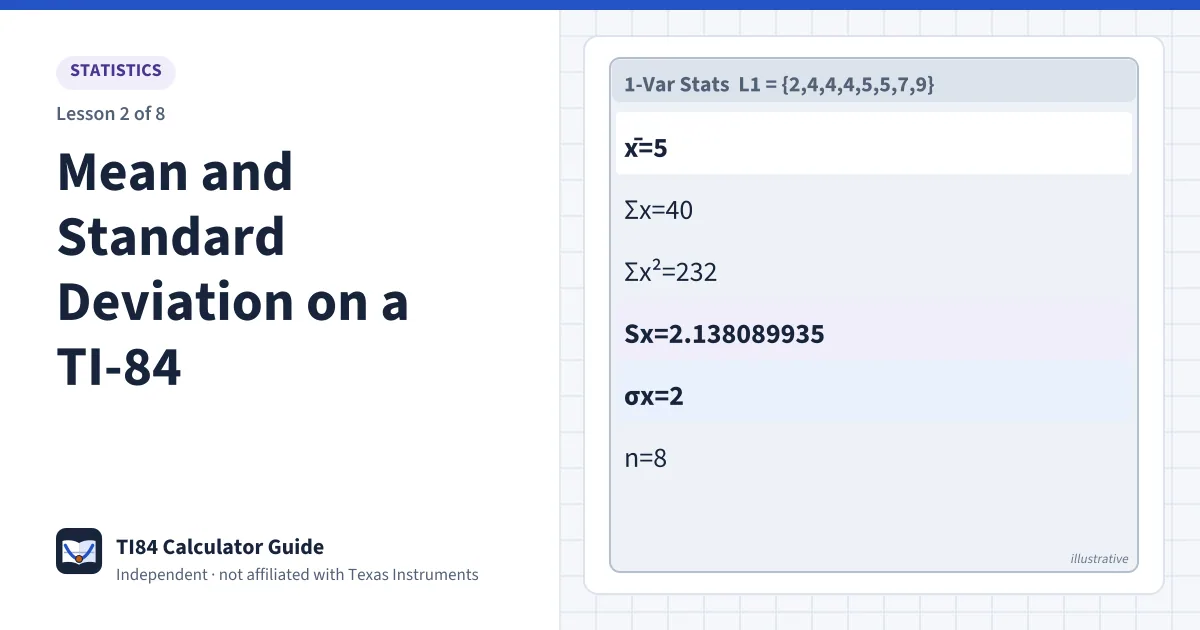
We will use this data set throughout the Statistics hub: 2, 4, 4, 4, 5, 5, 7, 9.
- Move the cursor to the first empty cell under L1.
- Type 2 ENTER, 4 ENTER, and so on for all eight values.
- The bottom line shows
L1(9)=when you are ready for a ninth value — a quick count check: eight values entered.
Enter paired data
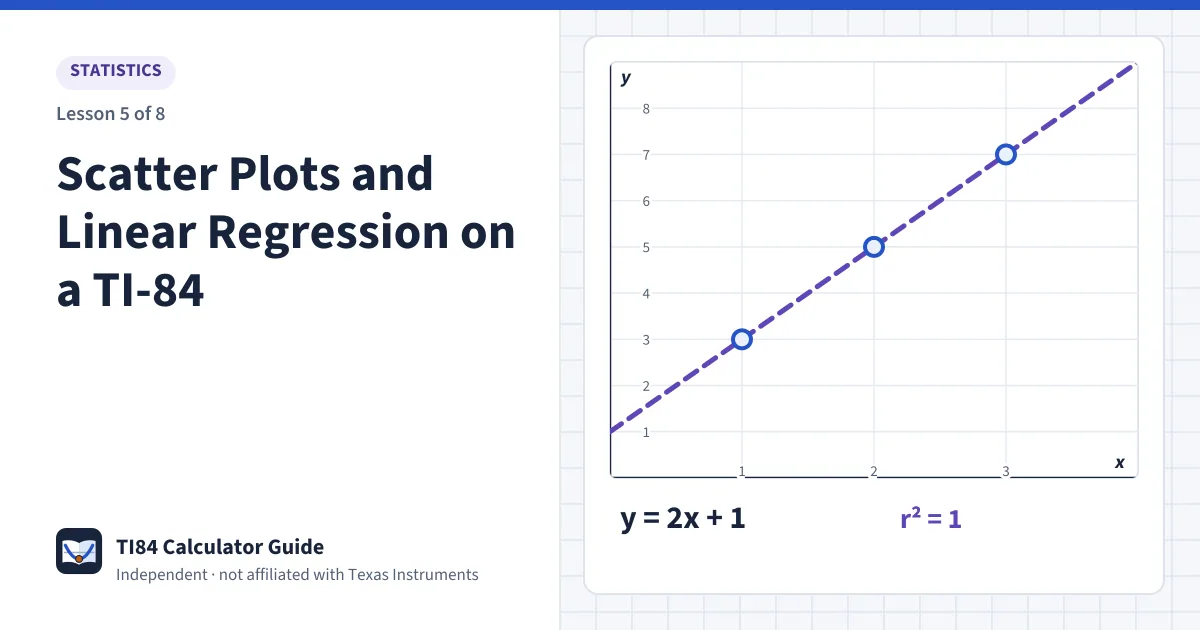
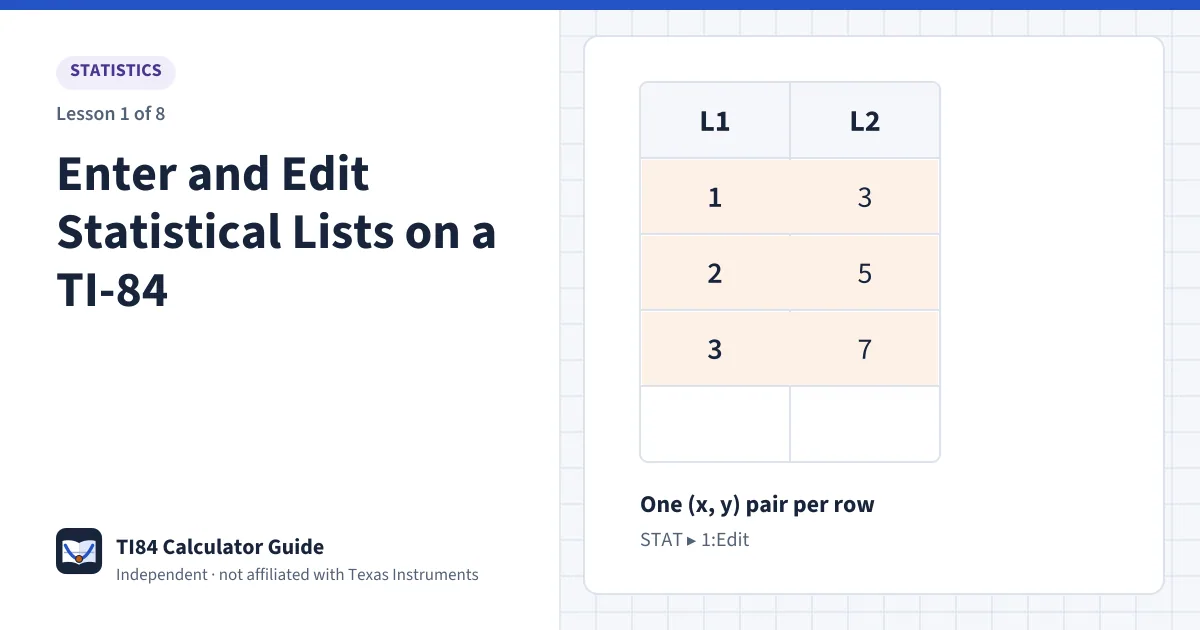
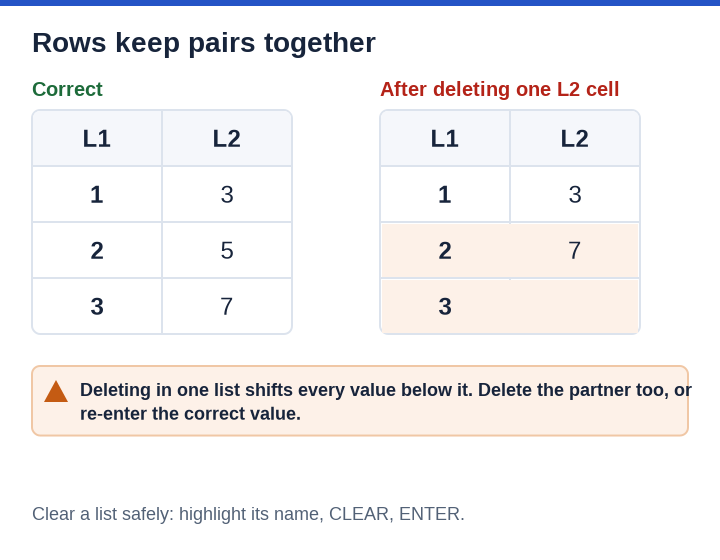
For x–y data, such as hours studied and test score, use two lists with one pair per row:
| Row | L1 (x) | L2 (y) |
|---|---|---|
| 1 | 1 | 3 |
| 2 | 2 | 5 |
| 3 | 3 | 7 |
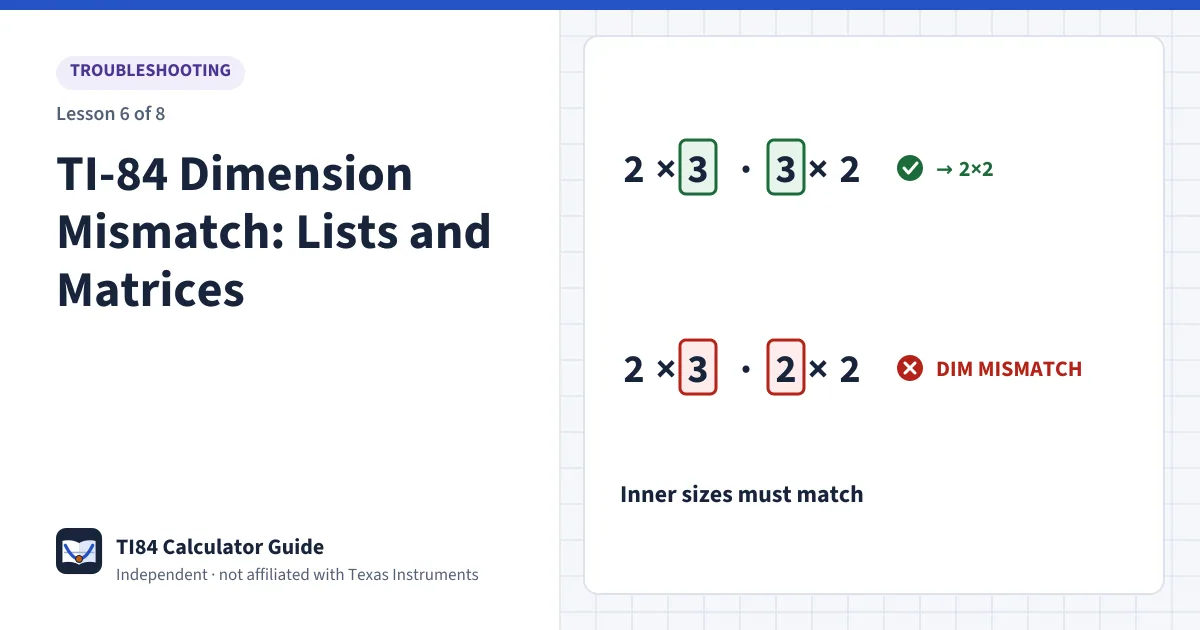
These are the points used in the regression lesson. Both lists must have the same length, or two-variable commands stop with ERR:DIM MISMATCH.
Fix, insert and delete values
- Change a value: move onto it, type the new number, press ENTER.
- Delete a value: move onto it and press DEL. Values below move up.
- Insert a value: move to where it belongs and press 2nd DEL (INS). A 0 appears; type over it.
Clear a list (the safe way)
- In the editor, press ▲ until the list name (L1) is highlighted.
- Press CLEAR, then ENTER. The values are gone; the column stays.
Do not press DEL on the name — that removes the column from the editor (SetUpEditor brings it back). From the home screen, STAT 4:ClrList followed by L1,L2 clears several lists at once.
A memory reset also clears lists, but it removes programs, other data and settings as well. It is never the right tool for starting a new data set.
Sort without breaking pairs
STAT 2:SortA( sorts in ascending order. SortA(L1) is fine for one-variable data. For pairs, sort both lists together: SortA(L1,L2) sorts by L1 and moves each L2 value with its partner. Sorting L1 alone would scramble the pairs.
Formulas in lists
You can define a list from another: move to the name L3, type L1² (L1 is 2nd 1), and press ENTER. L3 fills with the squares. Putting the formula in quotes ("L1²") makes L3 update whenever L1 changes.
Common mistakes
- Leftover data in a list from last week — check the bottom of each list before calculating.
- Unequal list lengths for paired data → DIM MISMATCH.
- Typing a negative with the minus key → syntax error; use (−).
Practice
Our independent statistics calculator accepts the same list pasted as 2, 4, 4, 4, 5, 5, 7, 9 and reports any item it cannot read rather than treating it as zero. The regression calculator takes x and y lists and checks their lengths match. Neither is a TI-84 emulator.
Sources
- TI-84 Plus Graphing Calculator Guidebook (PDF) — Texas Instruments (checked November 23, 2026)
- Getting Started with the TI-84 Plus CE Graphing Calculator (PDF) — Texas Instruments (checked November 23, 2026)
How this guide was made: written by Paul B. Spicer with AI drafting assistance, following our editorial policy. Key sequences and menu names were checked against the Texas Instruments documents listed above; numeric examples are recomputed by automated tests. Diagrams are original illustrations, not screenshots. TI84 Calculator Guide is independently operated and is not affiliated with, sponsored by or endorsed by Texas Instruments. TI-84 Plus, TI-84 Plus CE and related names are used only to describe the calculators our guides cover. Found a mistake? Send a correction.